






This manual is based on GolfFix APEX version 0.20
GolfFix APEX Start Screen
Splash Screen
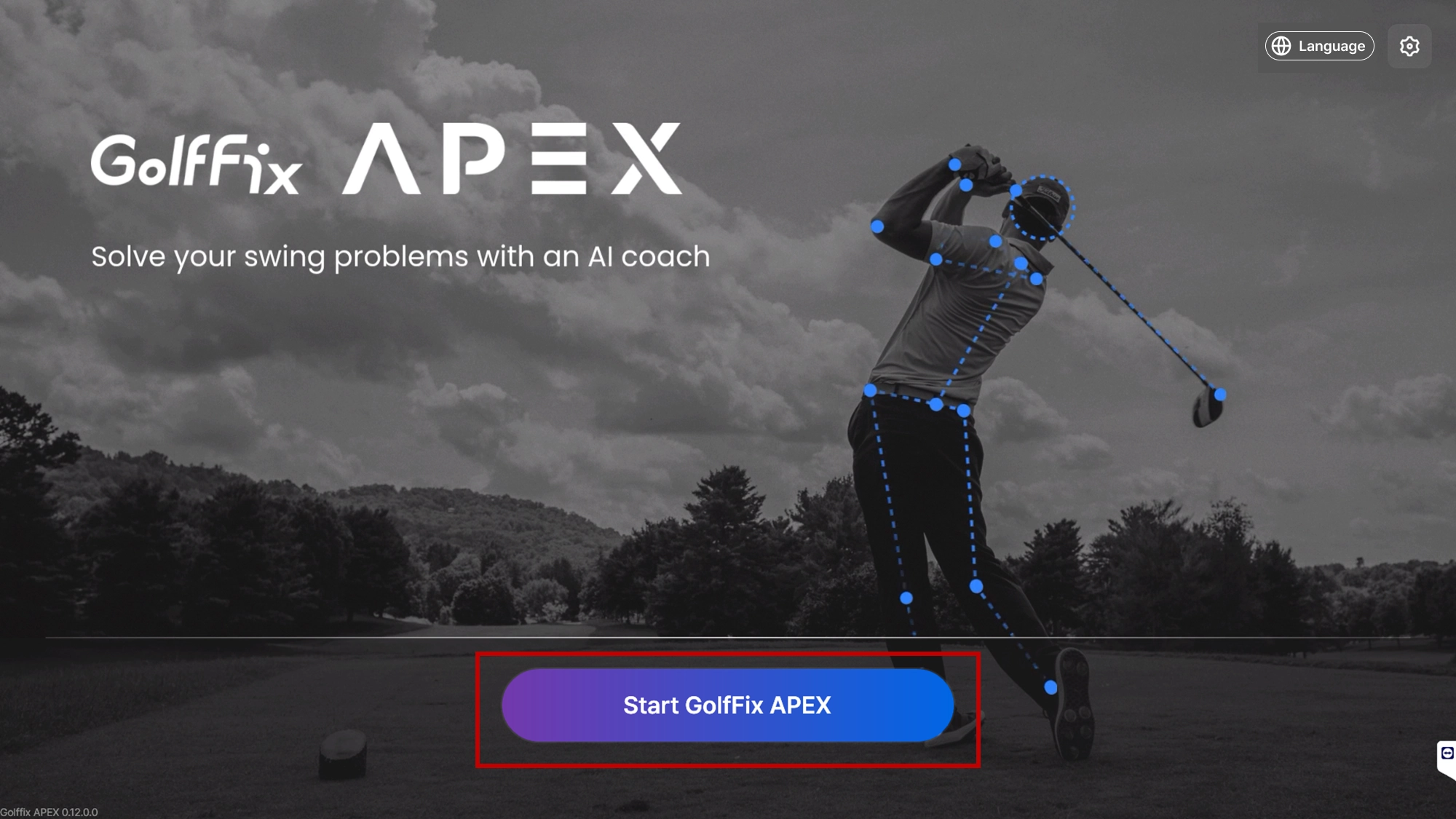
This is the standby screen.
•
Touch the [Start GolfFix APEX] button to start the session and access the Home Screen.
Login Guide Screen
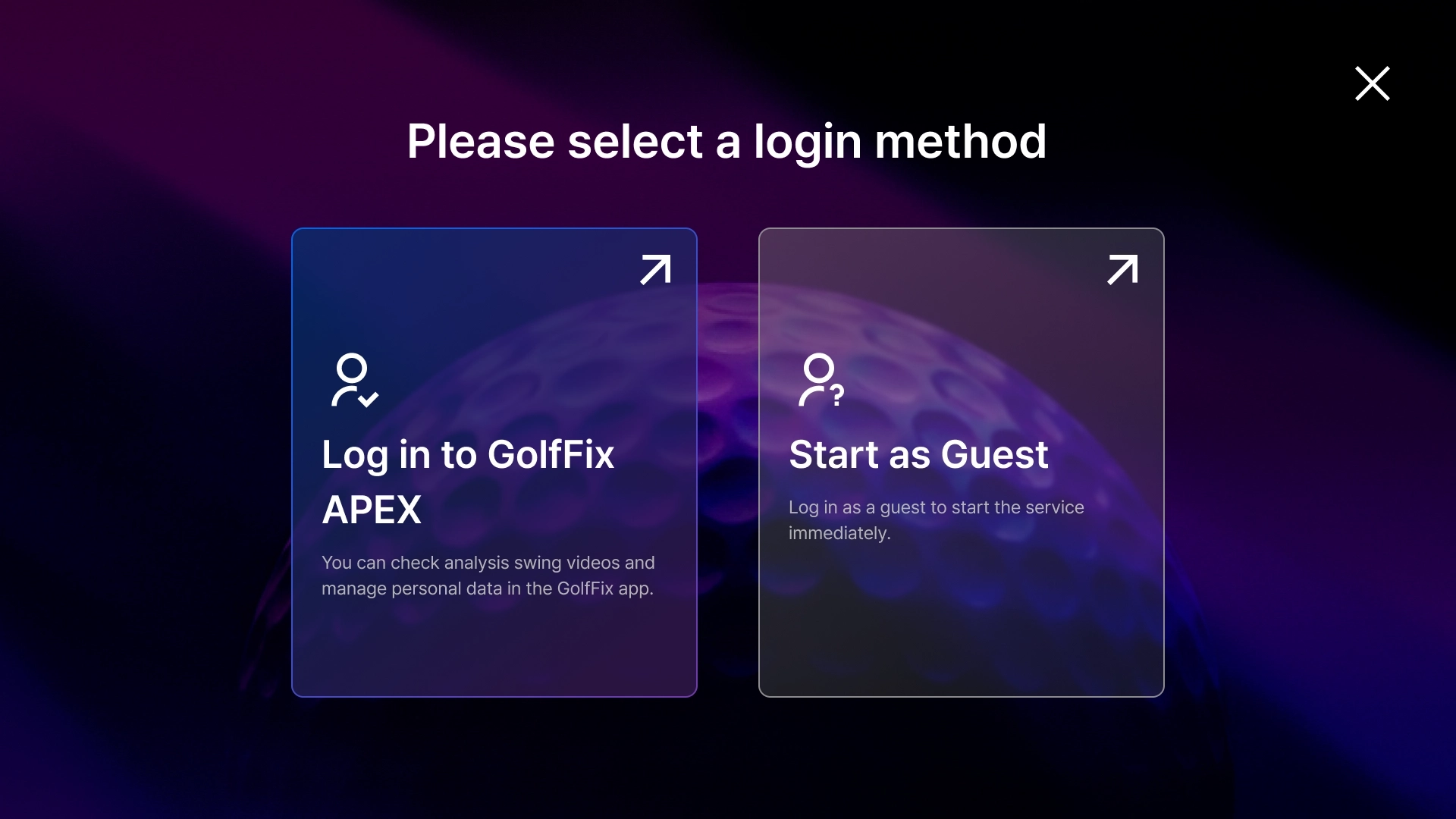
You can choose between APEX Login or Guest Login.
Login Screen
You can log in via the GolfFix app using a QR scan or a verification code.
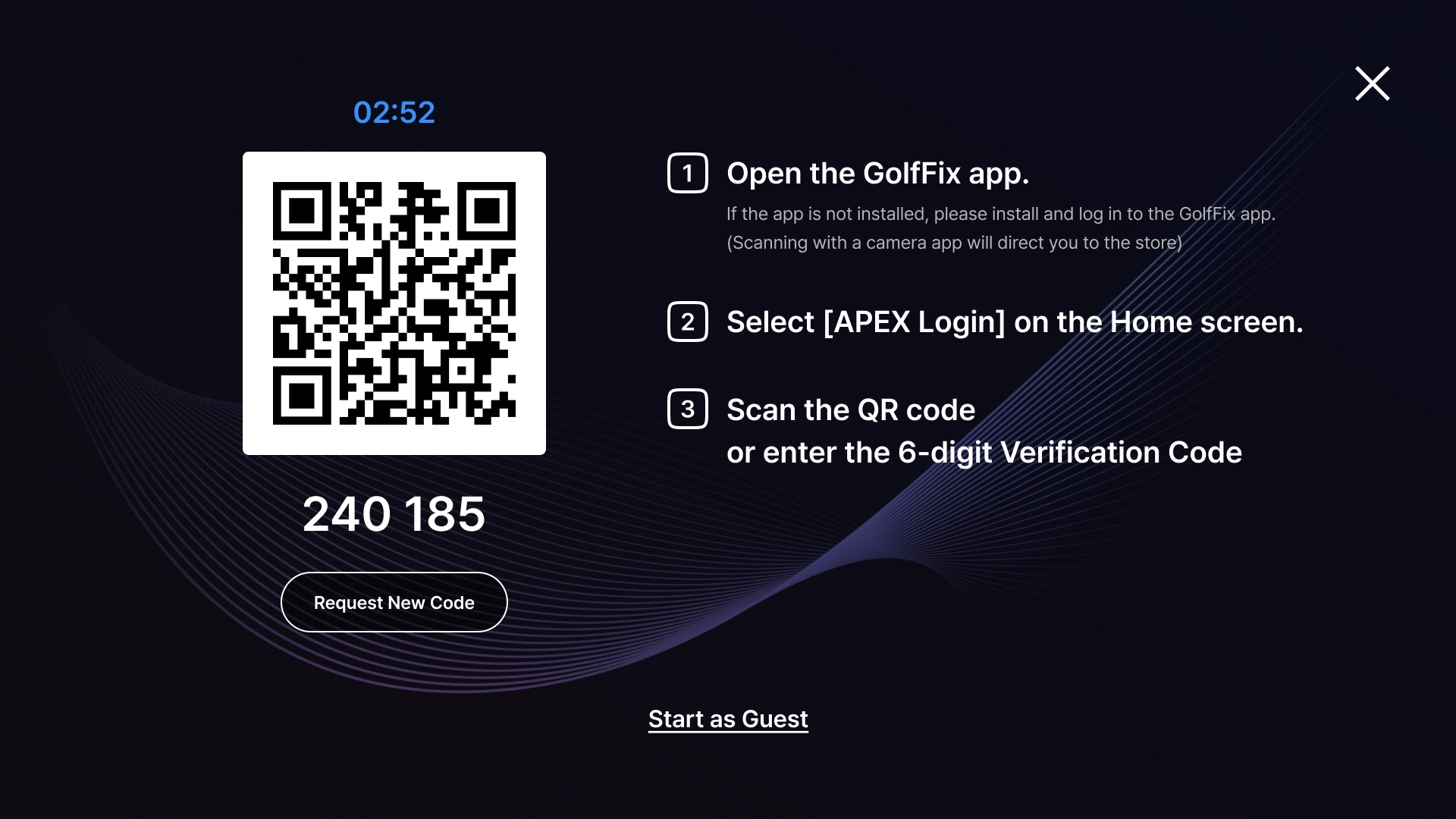
After opening the GolfFix app, you can log in by tapping the [APEX Login] button at the top of the Home Screen.
•
QR Login: Scan the QR code using the in-app scanner.
•
Verification Code Login: Enter the 6-digit verification code into the designated field in the app.
Academy Screen
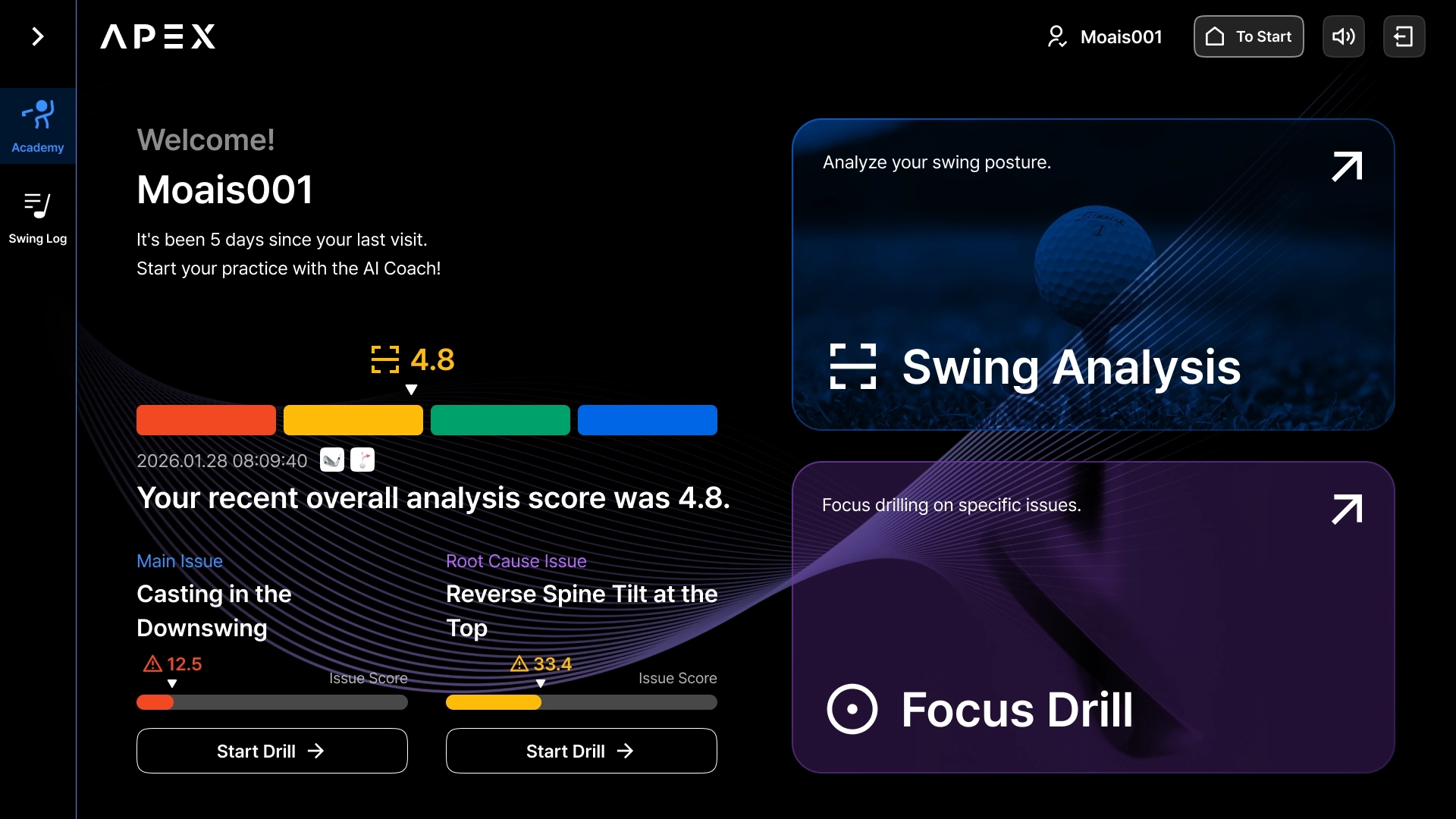
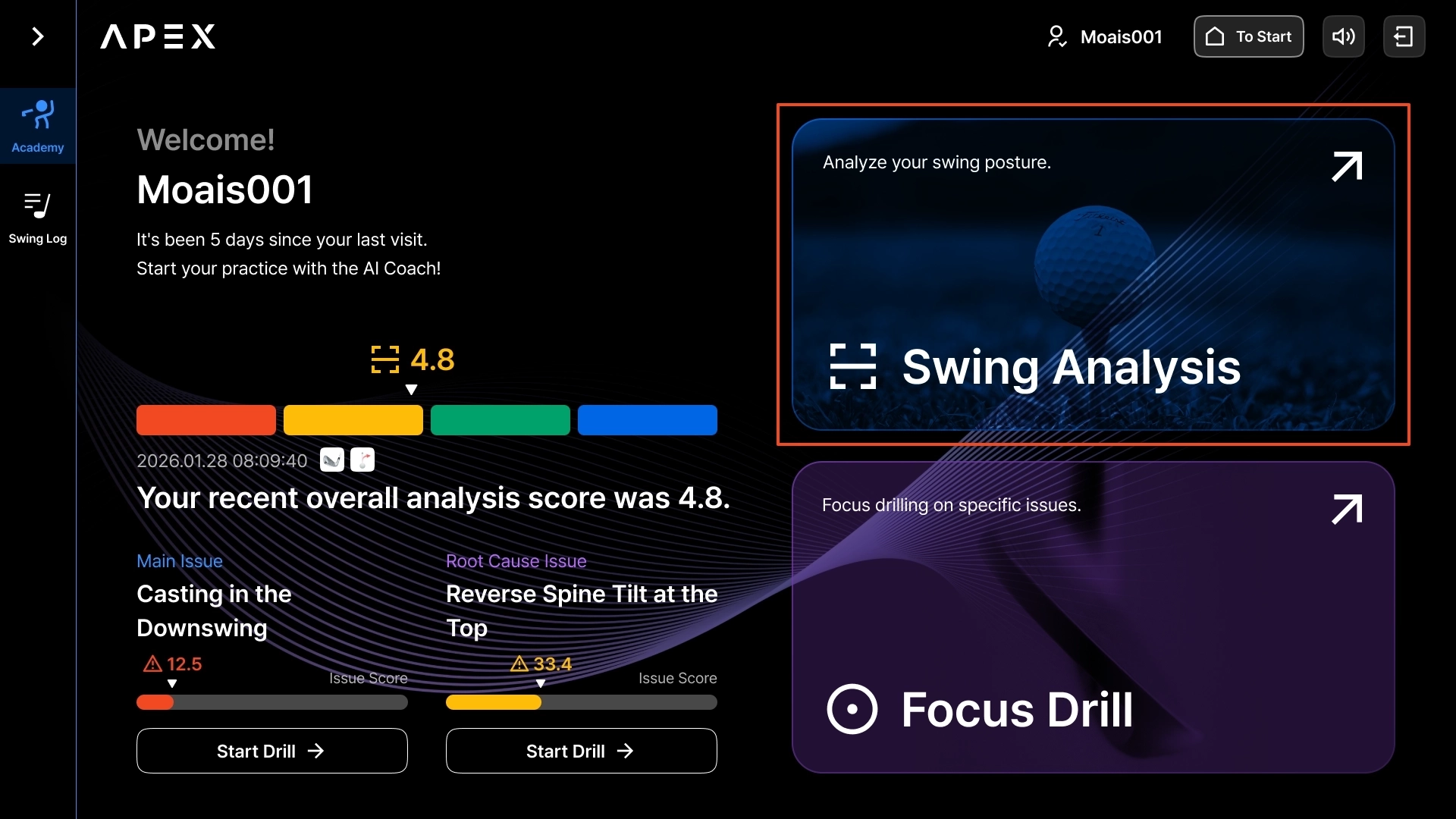
You can check your latest analysis results or start key features.
Access Academy and Swing History via the GNB menu on the left.
•
Review Latest Results: Check your most recent analysis result.
•
Select Mode: Choose your desired mode between Swing Analysis and Focus Drill.
◦
Swing Analysis: After 3 swings, the AI analyzes issues and provides feedback.
◦
Focus Drill: Practice specific issues repeatedly to improve your swing.
GolfFix APEX analyzes full swings; approach shots, putting, etc., are not supported.
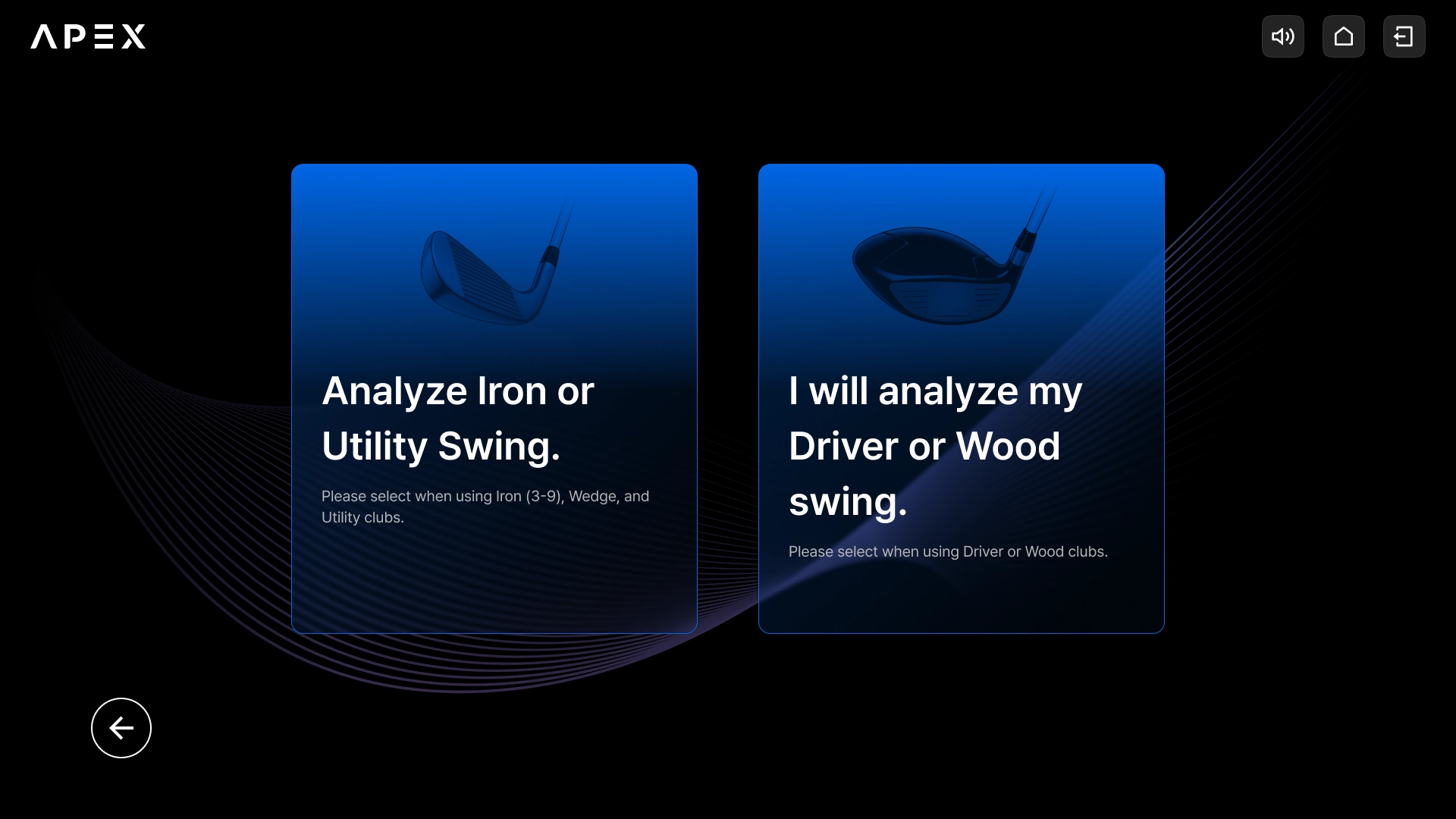
After selecting a mode, you can select a club.
•
Iron: In case of Iron / Utility Iron
•
Driver: In case of Driver / Wood / Hybrid
Swing Analysis Detailed Guide
Perform 3 swings, and the AI will analyze issues and guide you on improvement directions.
#1. Select Swing Analysis Mode
Select Swing Analysis on the Academy Screen.
#2. Set Analysis Type
•
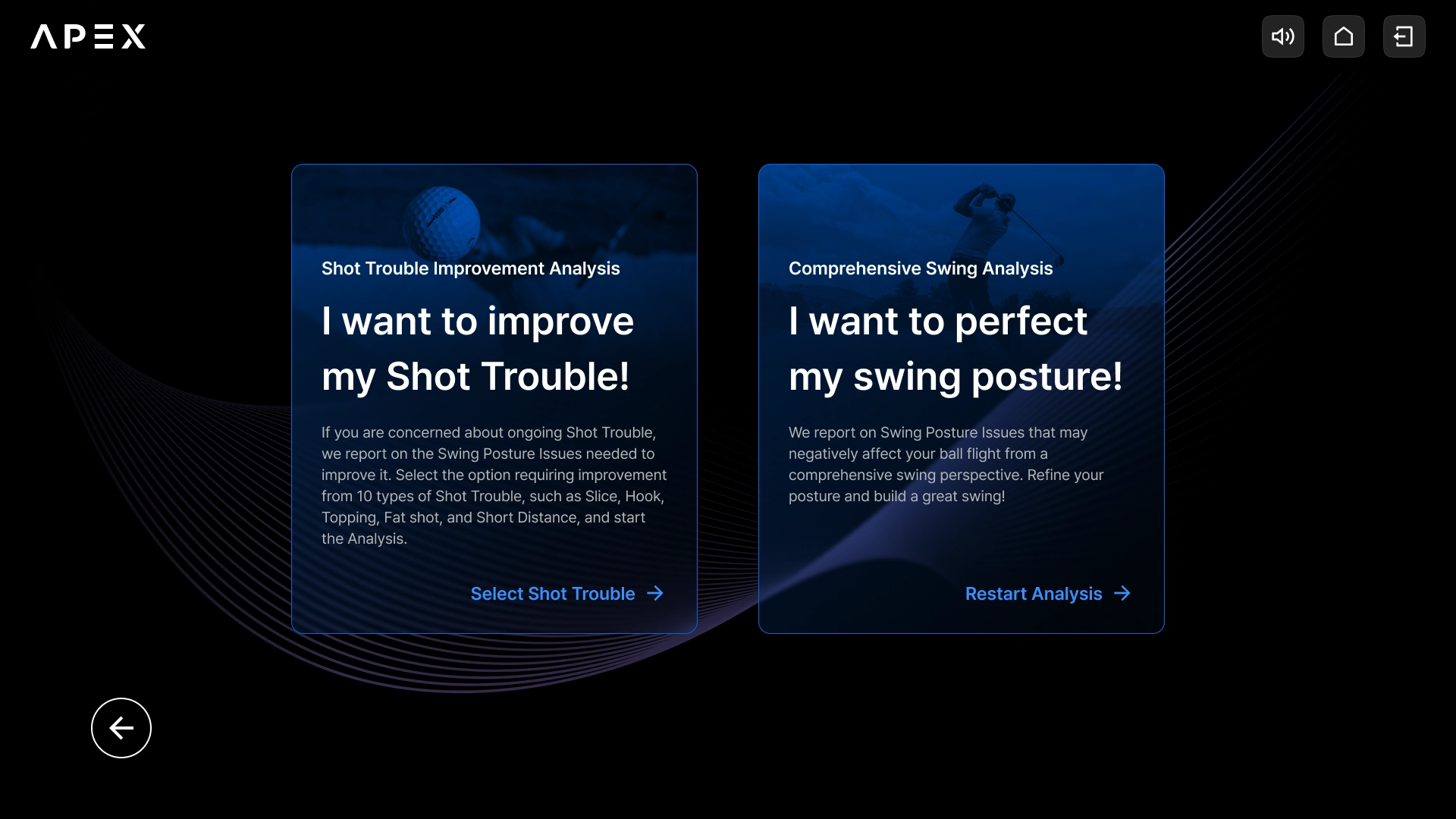
Two analysis options are provided depending on whether you want to improve Shot Troubles or focus on posture improvement.
◦
[Shot Trouble Analysis] → Analysis focused on 10 types of Shot Troubles
◦
[Integrated Swing Analysis] → Analysis focused on overall swing posture
#3. Shot Trouble Analysis
•
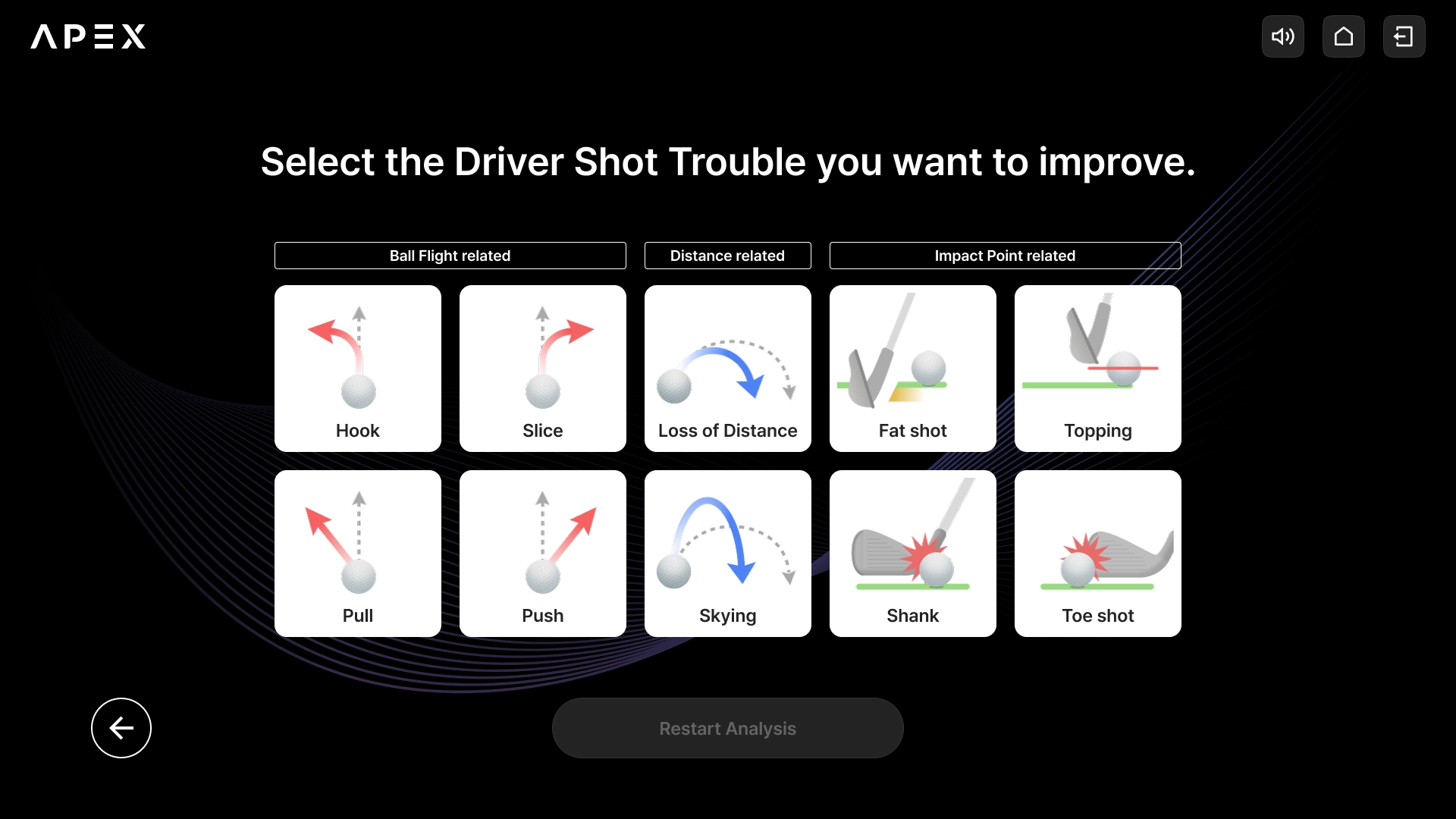
Provides options for 10 Shot Troubles you want to improve (Hook, Slice, Pull, Push, Short Distance, Skying, Fat shot, Thin shot, Shank, Toe Shot)
1.
[Hook] → A shot where the ball curves to the right of the intended direction (left for left-handed)
2.
[Slice] → A shot where the ball curves to the left of the intended direction (right for left-handed)
3.
[Pull] → A shot where the ball starts to the left (right for left-handed)
4.
[Push] → A shot where the ball starts to the right (left for left-handed)
5.
[Short Distance] → A shot where distance loss occurs as the ball does not go as far as expected and either floats or flies low
6.
[Skying] → A shot where the ball launches excessively higher than a normal trajectory
7.
[Fat shot] → A shot hitting the ground before the ball
8.
[Thin shot] → A shot hitting the top part of the ball thinly
9.
[Shank] → A shot hitting the neck part of the clubface, not the face
10.
[Toe Shot] → A shot hitting the toe of the clubface
•
After selecting one of the 10 options above, select the [Start Analysis] button to start swing recording.
#4. Swing Analysis Swing Recording
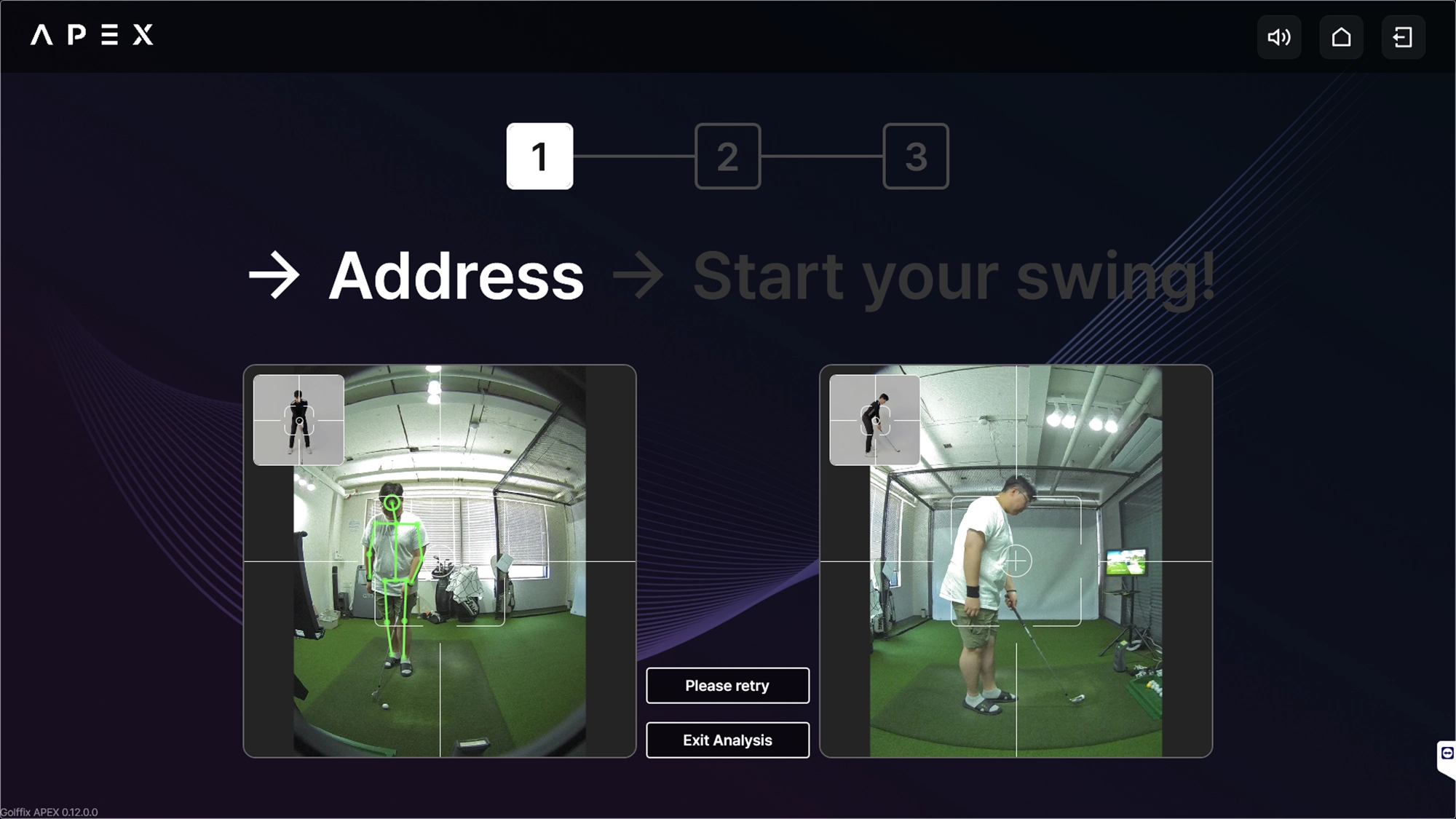
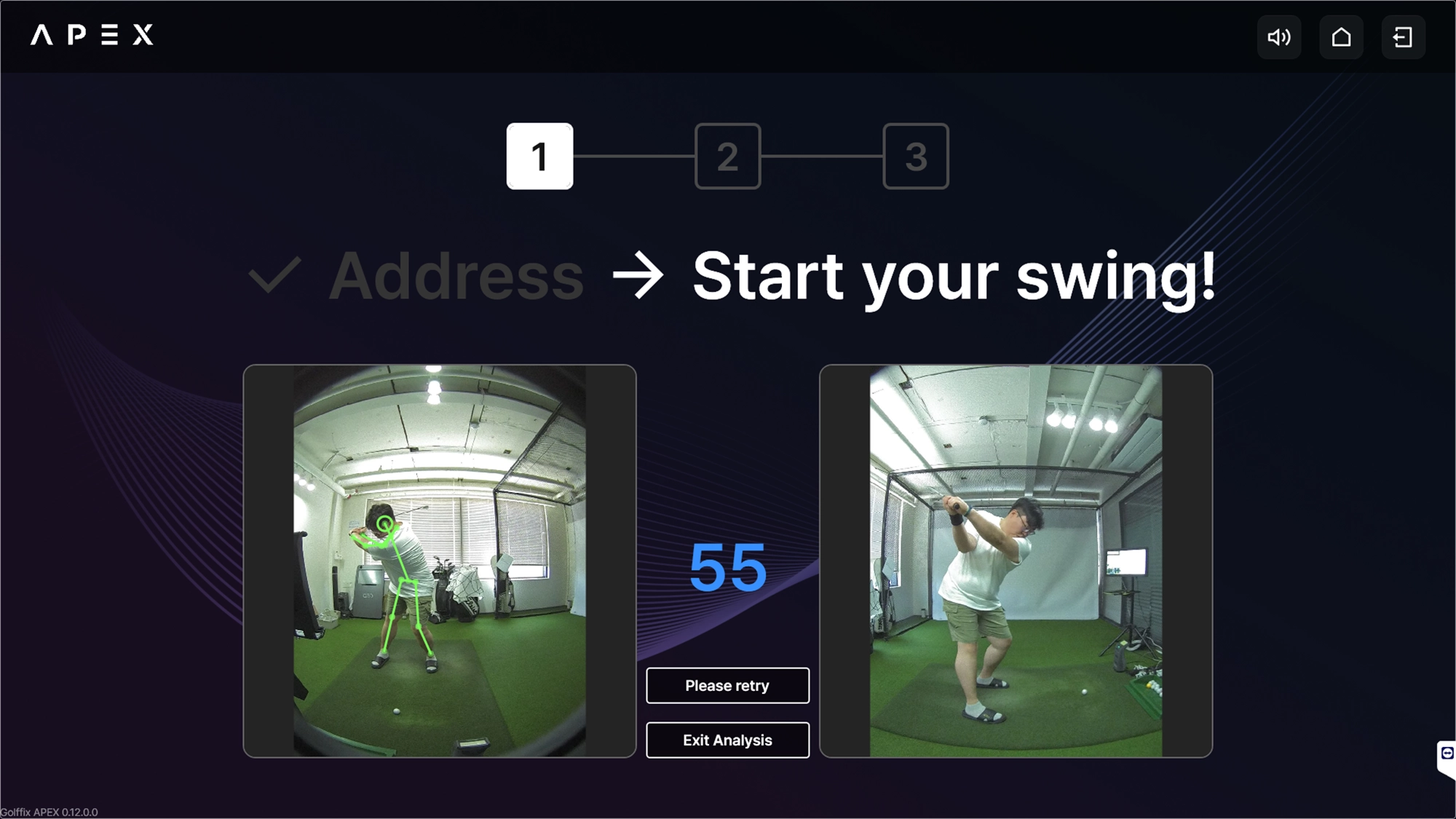
How to Record Swing
•
When you take the address posture following the guide "Recognizing address...", the program automatically recognizes the posture and guides you to "Start your swing!"
•
When a full swing is recognized, Swing Analysis starts automatically.
•
Repeat the above steps 3 times for accurate analysis results.
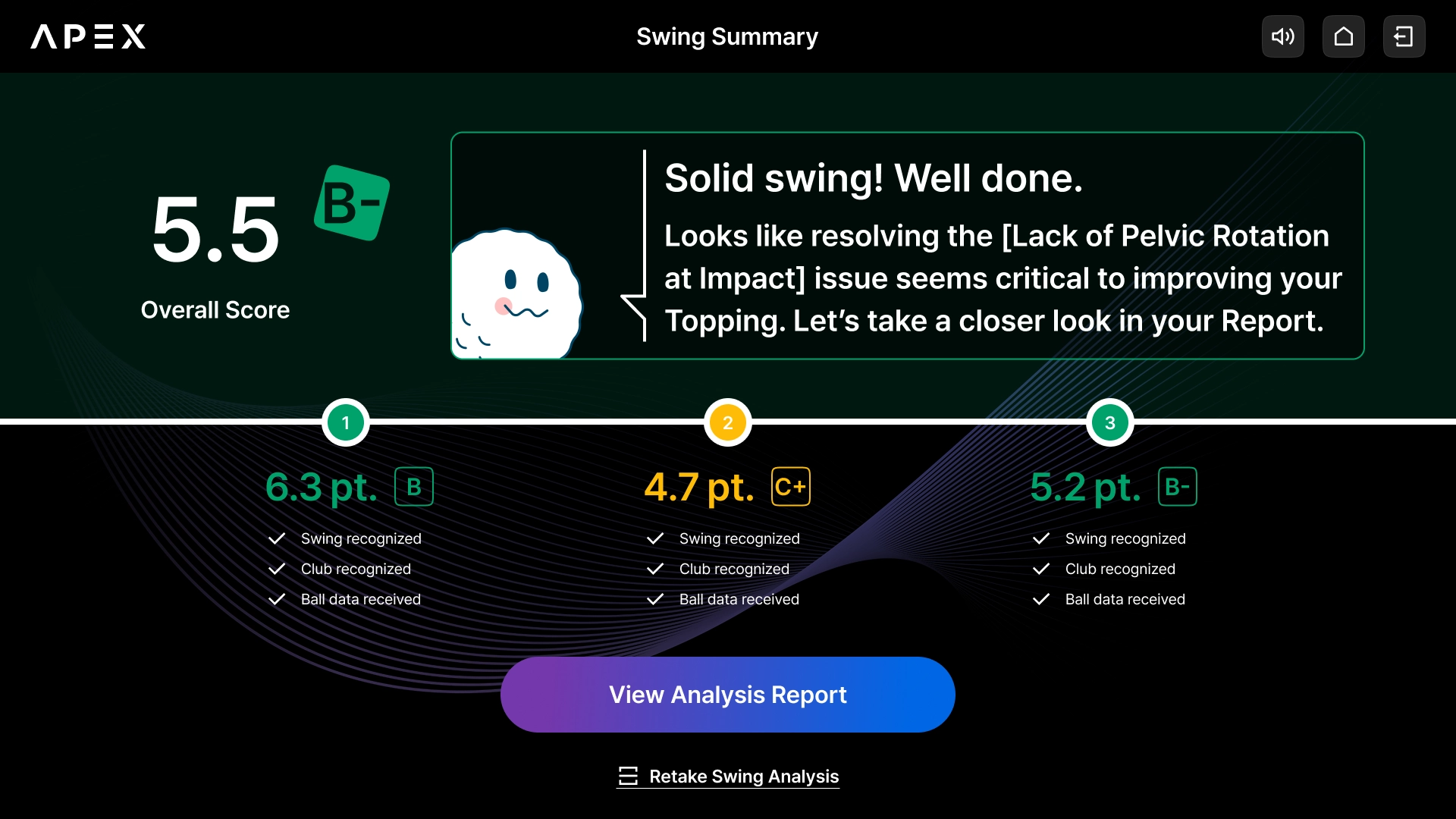
#4-1. Analysis Complete - Result Report
You can view the overall score, feedback from the AI Coach, and scores for individual swings.
#4-2. Analysis Complete - Comprehensive Report
You can view the combined analysis results.
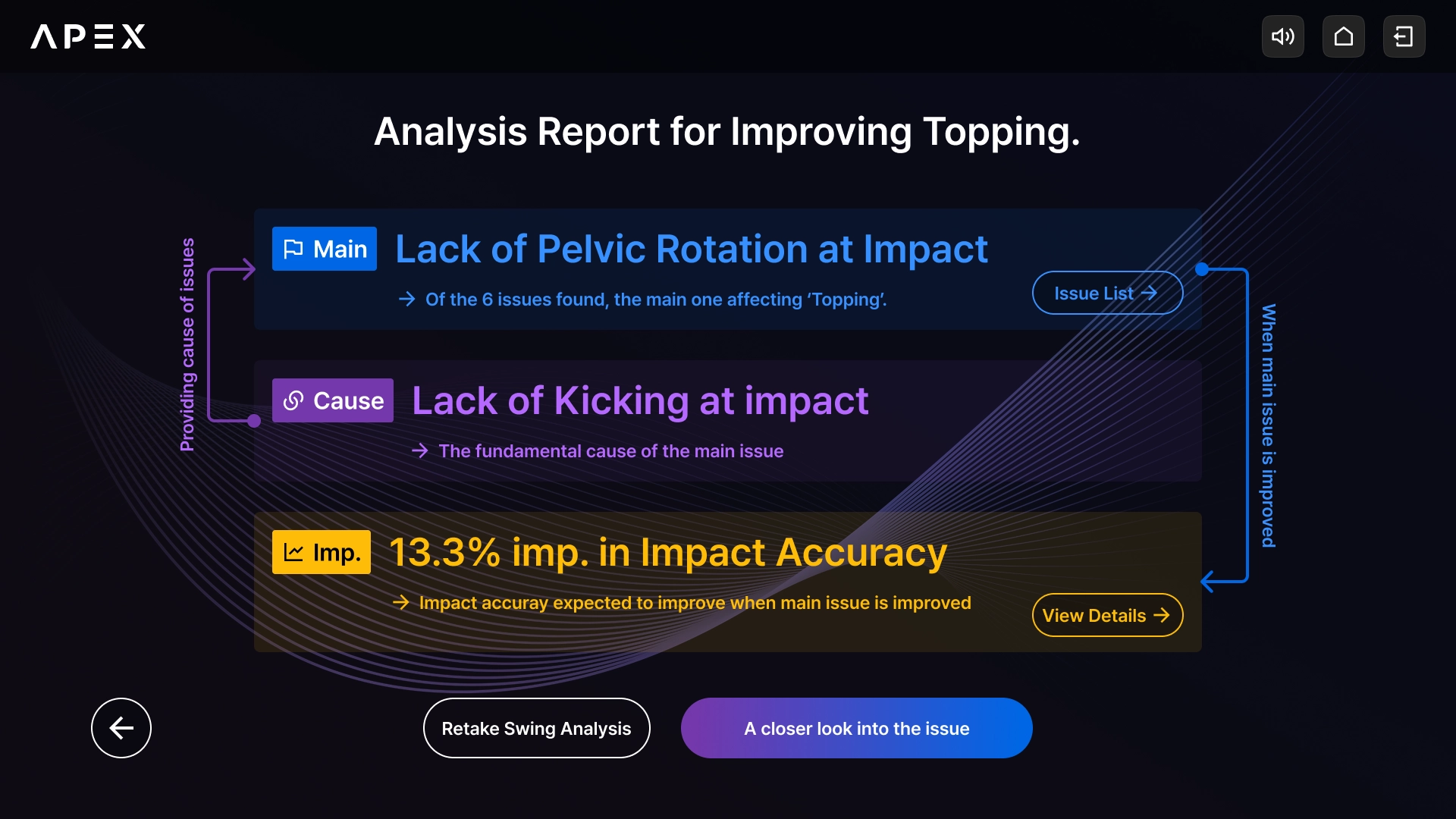
Main Issue and Causal Issue
•
Main Issue
◦
The issue with the highest importance among analyzed issues.
◦
You can check the entire list of issues discovered through analysis by pressing the [Issue List] button to the right of the Main Issue.
•
Causal Issue
◦
The issue that causes the Main Issue among analyzed issues.
◦
Even for the same Main Issue, it may or may not appear depending on individual analysis results.
◦
If a Causal Issue appears, practicing the Causal Issue can lead to high swing improvement effects.
If a Causal Issue does not appear, practicing the Main Issue can lead to high swing improvement effects.
◦
If a Causal Issue does not exist, only the Main Issue is displayed.
Improvement
•
When improving the Main Issue, it predicts how much the swing can be improved (Distance, Impact Point, Orientation) based on the target Shot Trouble set before analysis and provides data (improvement rate) on this.
#4-3. Issue List
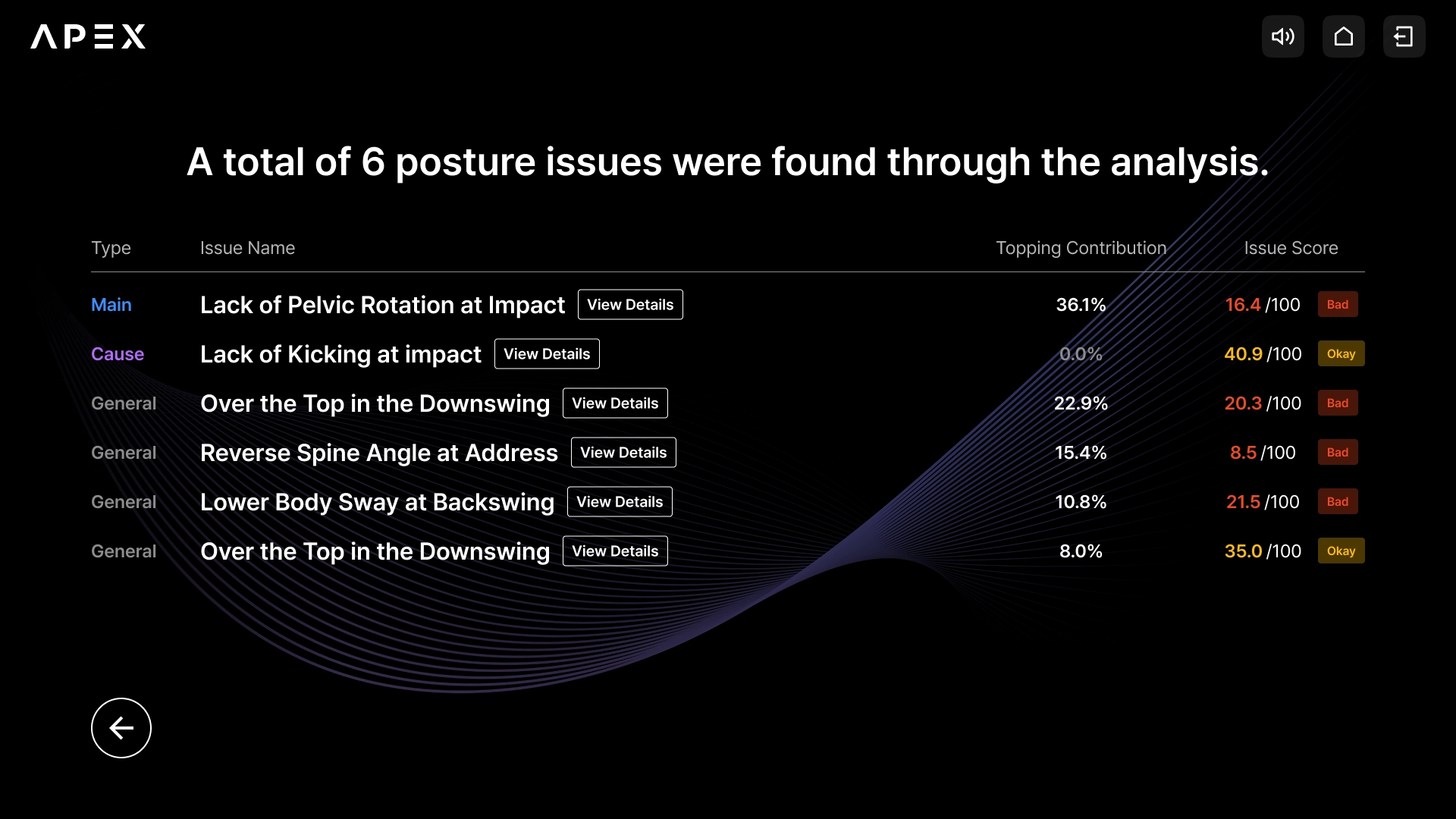
Provides a list of all issues discovered in the analysis.
•
Provides a list of all issues discovered in the analysis, including Main and Causal Issues.
◦
Press the View Details button to provide detailed information on the corresponding issue.
◦
Provides the influence (%) of each issue on the selected Shot Trouble.
◦
Provides the Issue Score (out of 100) for each issue.
#4-4. Ball Data Report
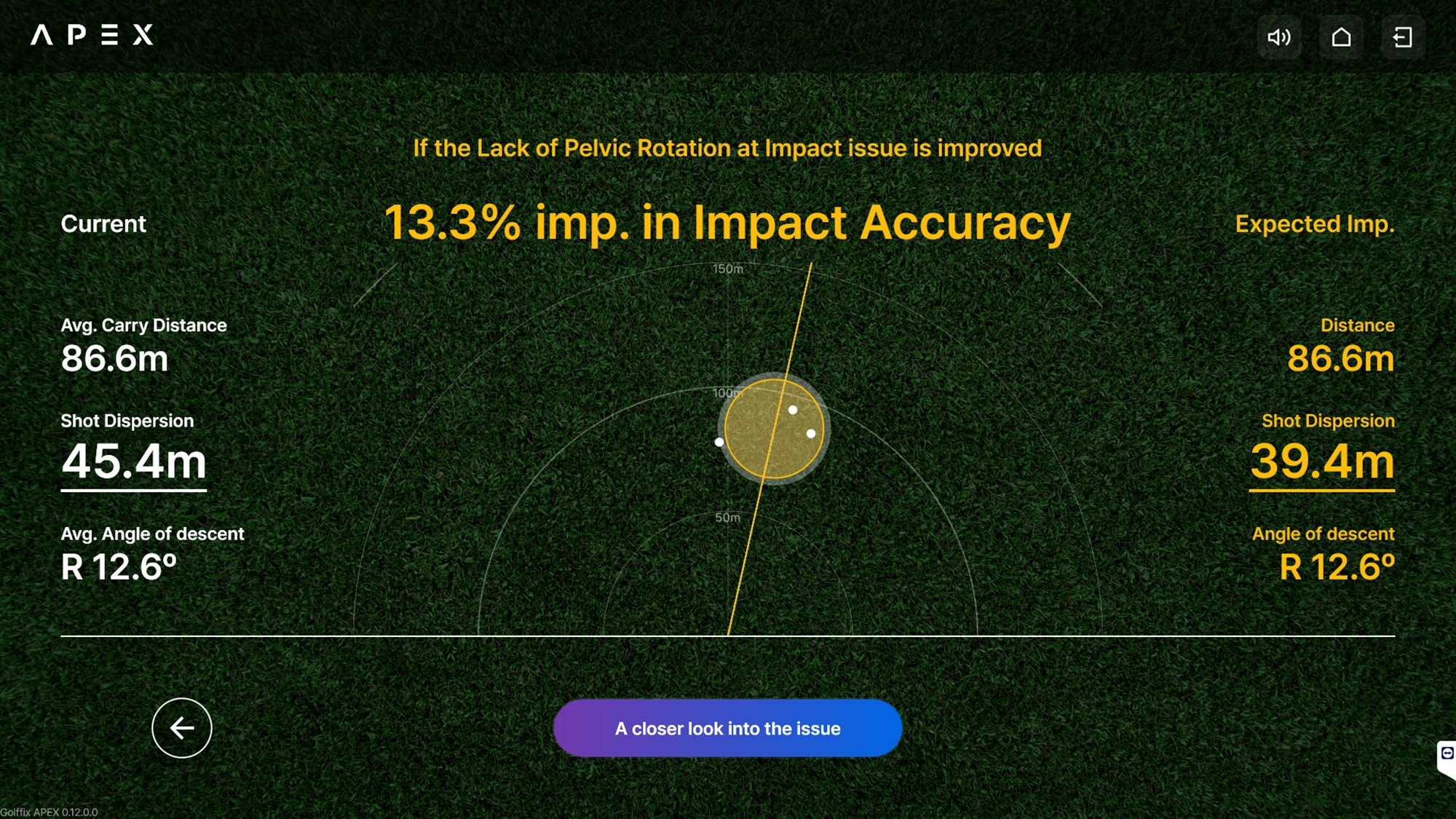
Visible when a launch monitor is connected and ball data is received.
Guides you through ball data and improvement data for 3 swings.
•
Provides information on Average Distance, Shot Dispersion, and average Angle of descent for 3 swings on the left.
•
Provides predicted Distance, Shot Dispersion, and Angle of descent information when the Main Issue is improved on the right.
•
If ball data reception failed during recording/analysis, only data excluding that case is displayed.
#5. Issue Report
If you press the [A closer look into the issue] button in the Comprehensive Report, you can access the Issue Report.
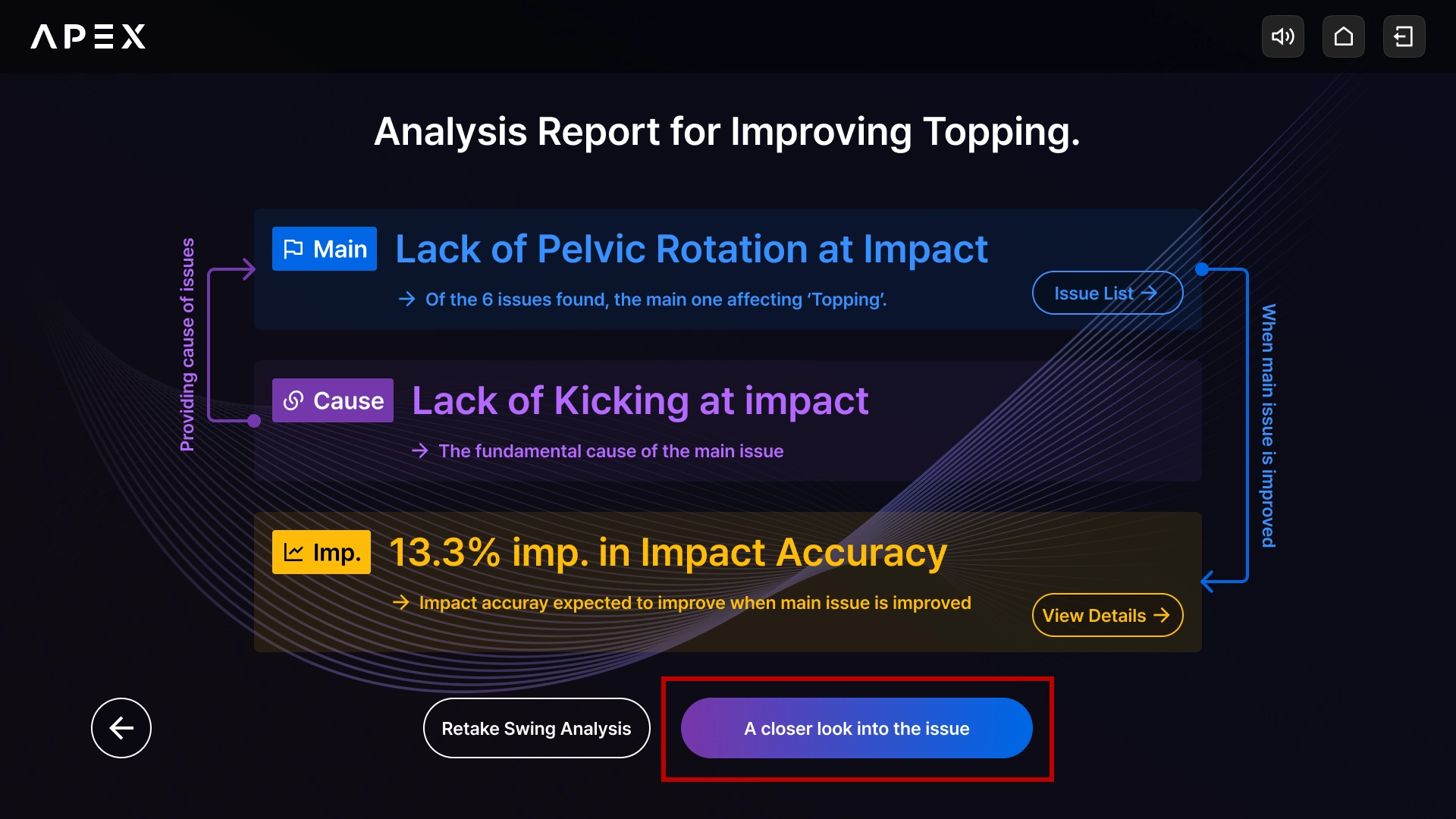
The Issue Report is as follows.
•
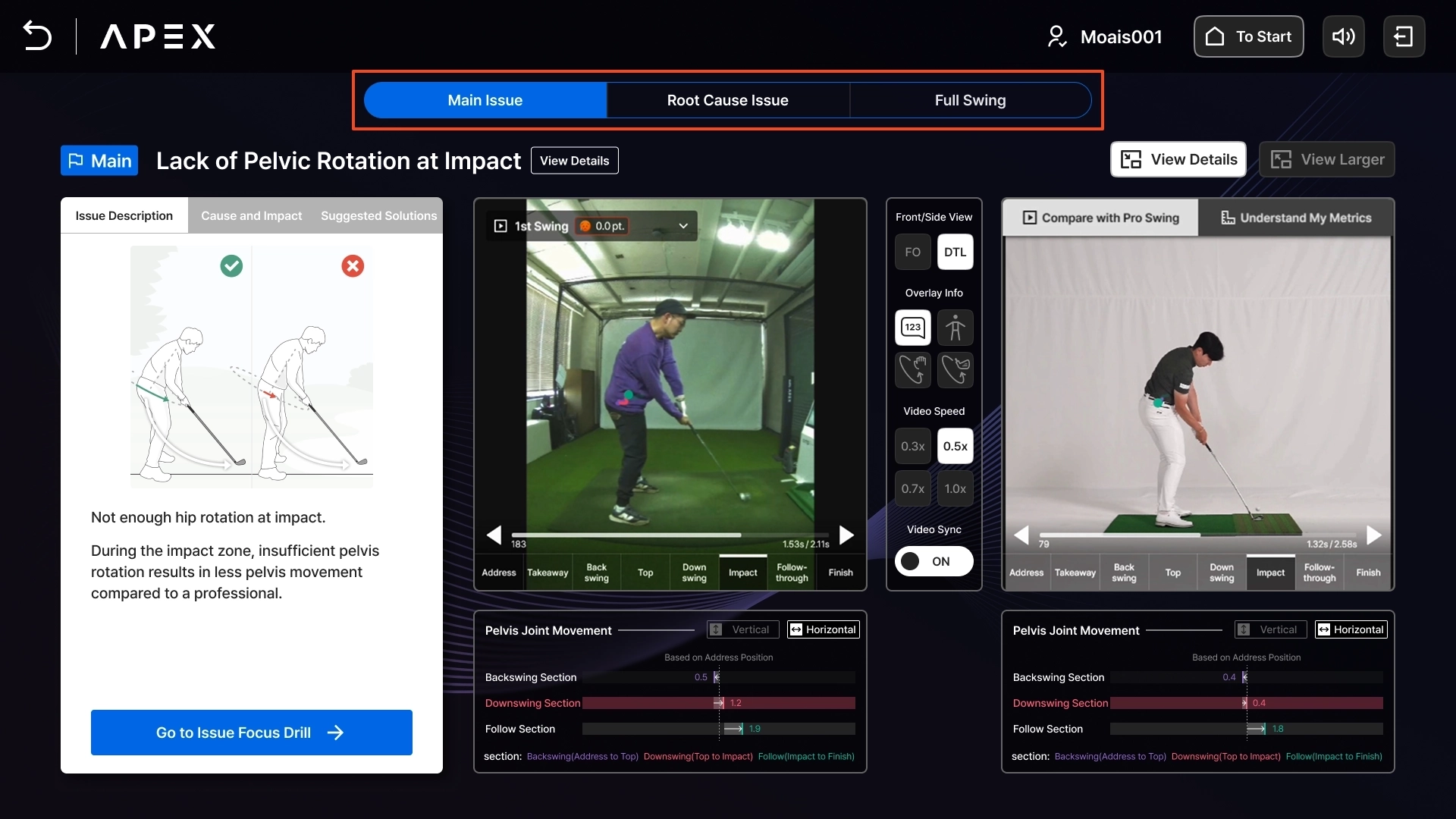
Main Issue, Causal Issue: A page where you can view detailed descriptions, videos, and helpful information about the issue.
◦
If the Main Issue is the same as the Causal Issue, only the Main Issue tab is displayed.
•
Full Swing: A page where you can explore videos with various guidelines and swing planes.
Tip: Immediately shows the swing that needs to be checked first among the three analyzed swings.
Issue Solution Guide
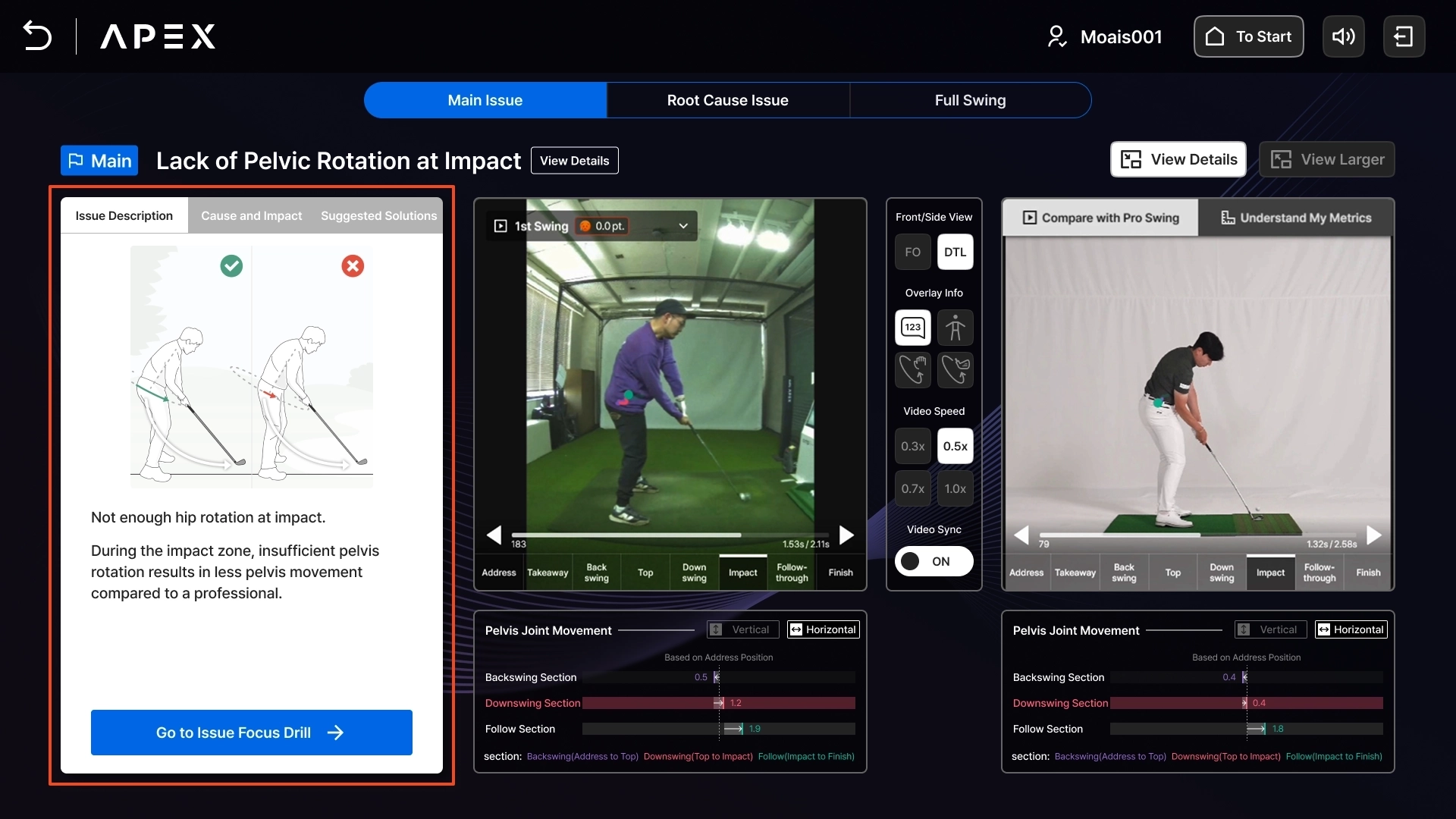
•
Provides concept images of the issue, description and interpretation of the issue, and causes and solutions.
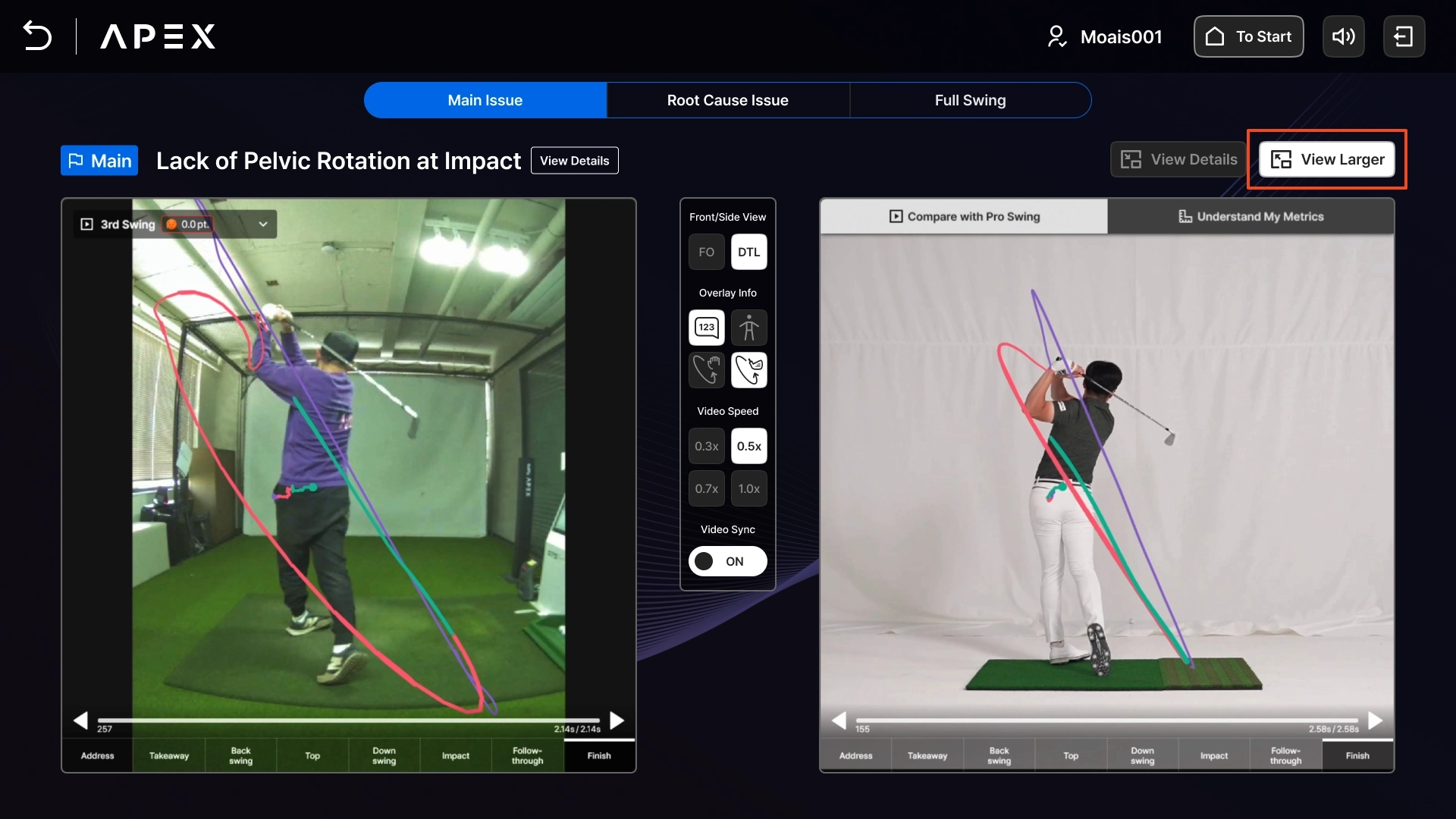
User and Pro Video
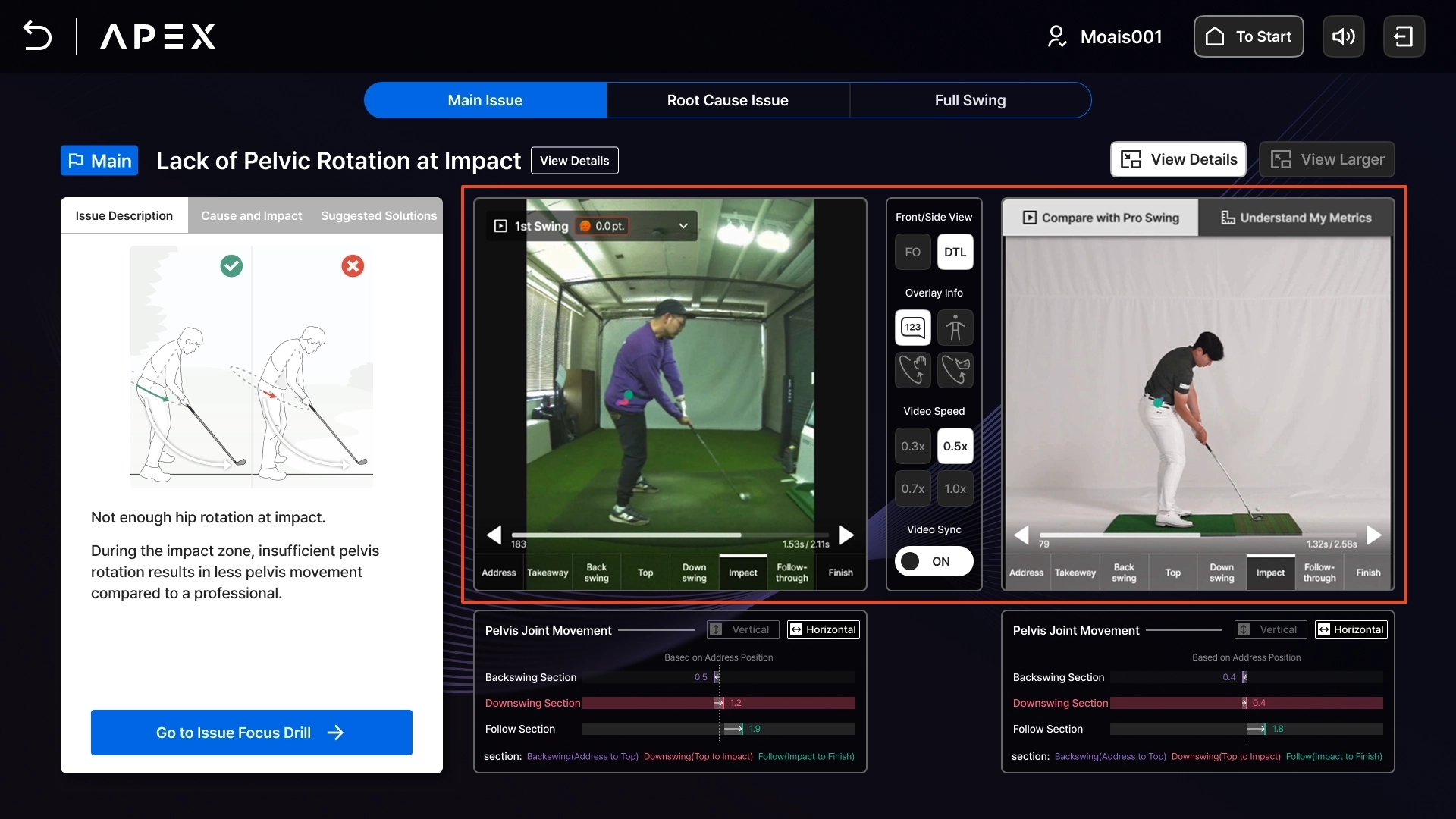
•
Touch the video screen to play or pause.
•
Press and drag left/right on the video, or press the left/right arrows to explore the video frame by frame.
•
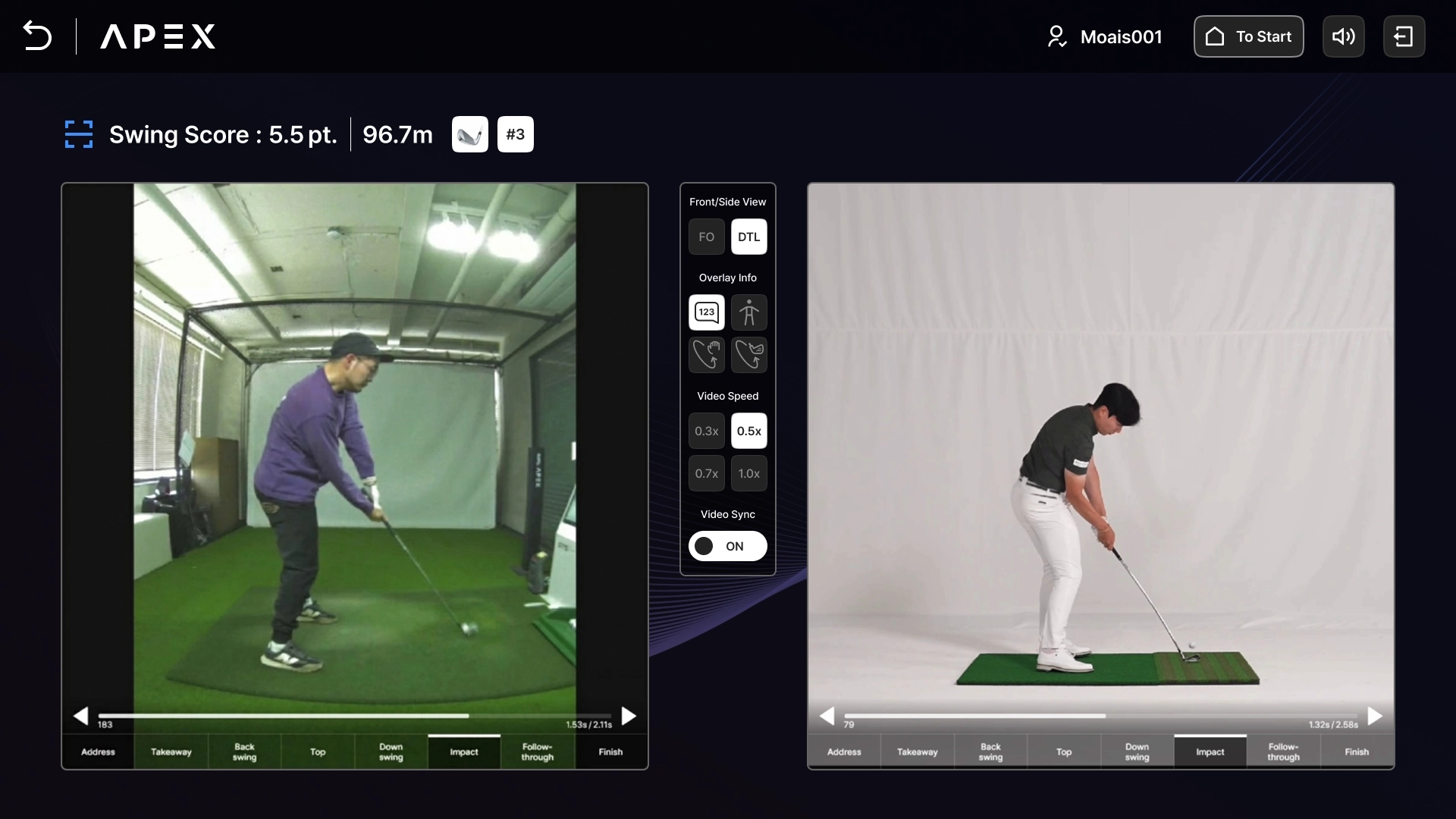
Move to the desired swing section using the playback control bar or 8 step buttons (Address, Takeaway, Backswing, Top, Downswing, Impact, Follow-through, Finish).
◦
Initially exposes the step corresponding to the issue.
◦
Ex) Casting in Downswing → Video paused at the Downswing step.
•
Video Control Options
◦
Face on/DTL: Switch between Face on and DTL videos.
▪
Both Face on/DTL videos are provided, but the direction advantageous for checking the occurred issue is determined and provided first.
◦
View Skeleton: Function to turn User and Pro Skeleton UI on/off.
◦
View Trajectory: Function to turn Wrist and Club Trajectory UI on/off.
◦
Playback Speed: Can be set to 0.3, 0.5, 0.7, 1.0x speed. Default is 0.5x.
◦
Video Sync: When ON, navigating one video reacts the same way on the other video.
Chart and Video Guide
Provides chart information most relevant to the issue.
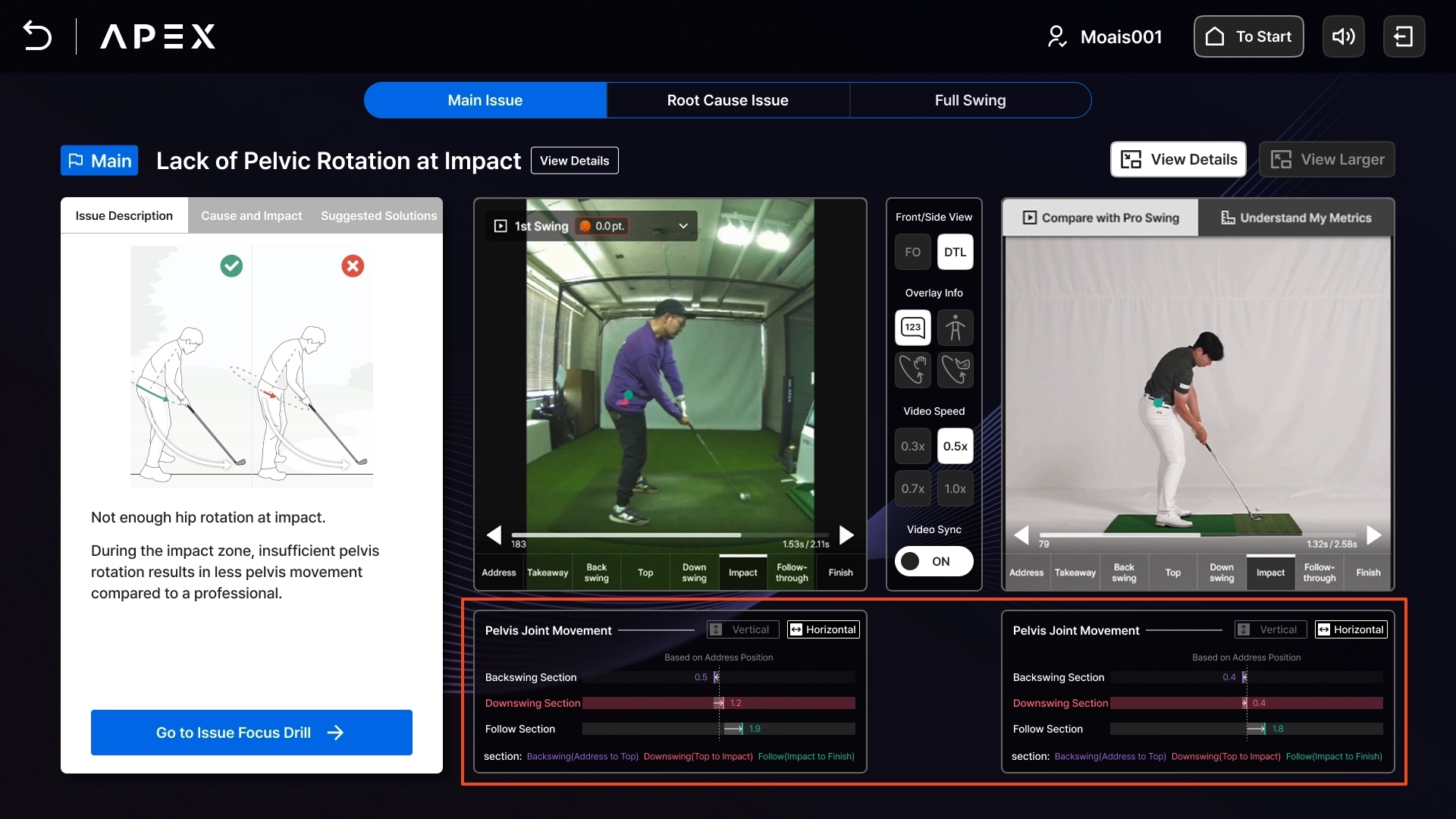
•
Metric and Chart Information
◦
Address
◦
Spine Angle
◦
Rotation Angle
◦
Joint Movement
▪
Head, Body, Shoulder, Pelvis, Knee
◦
Wrist Trajectory
◦
Club Trajectory
◦
Shaft and Arm Angle
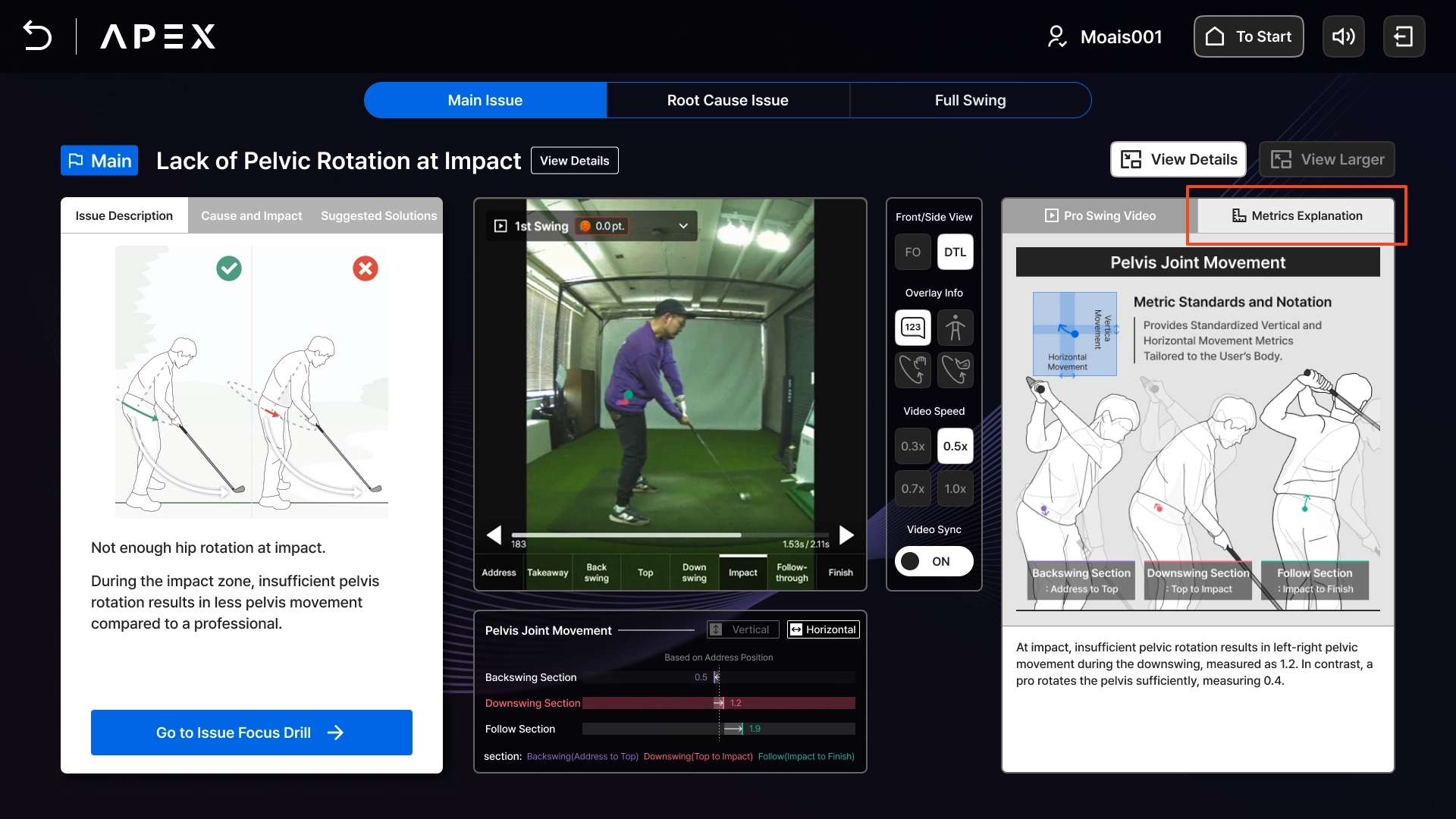
Metric Description
Description content for chart information.
Zoom View
You can view only the video in large size, excluding other information.
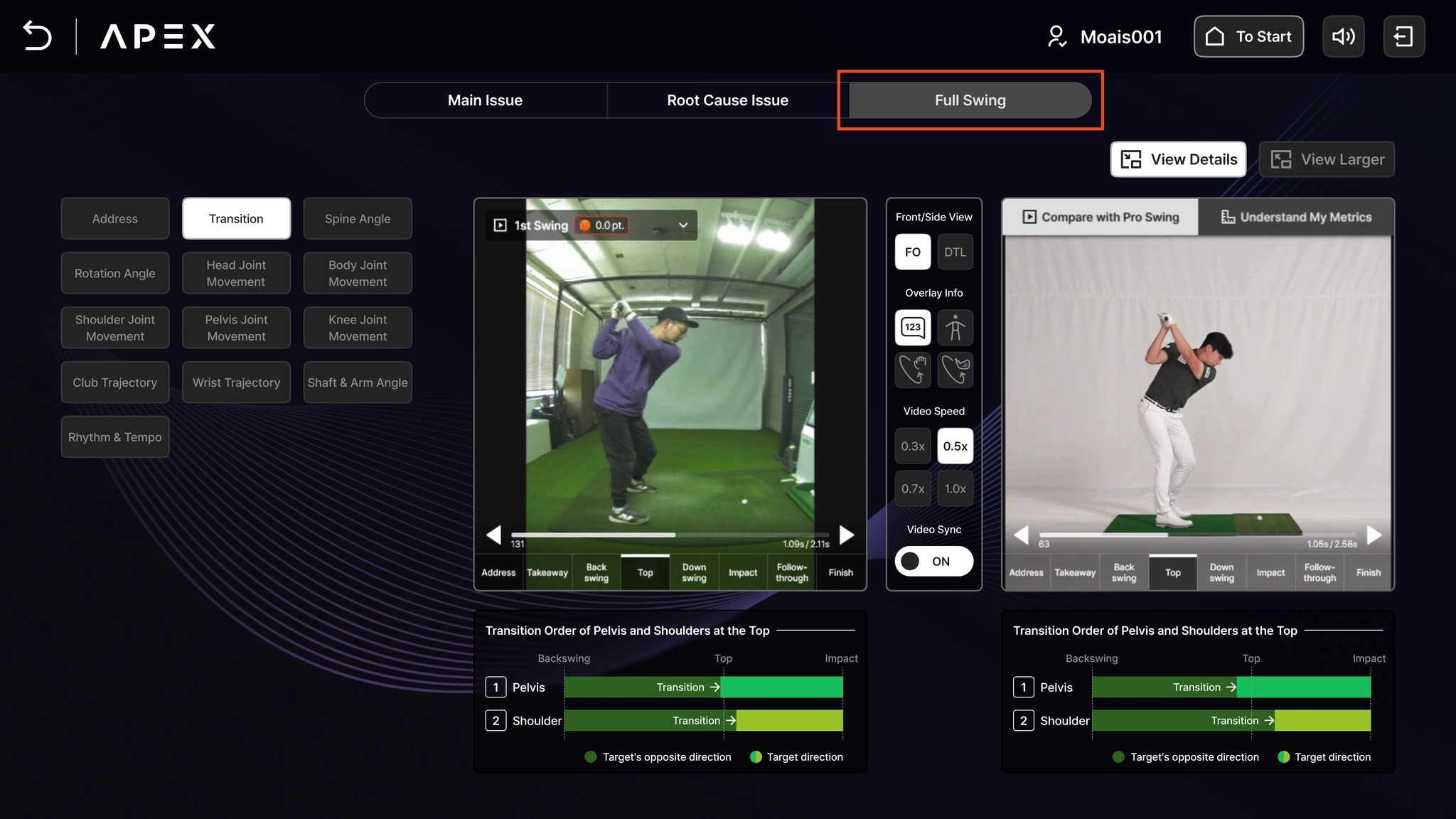
Full Swing
Provides all Face on/DTL charts/data and video information that GolfFix APEX can offer.
•
Depending on your goals, you can analyze the video in detail to find issues and improvement points.
•
Transition Movements and Rhythm & Tempo are information provided only on the Full Swing screen.
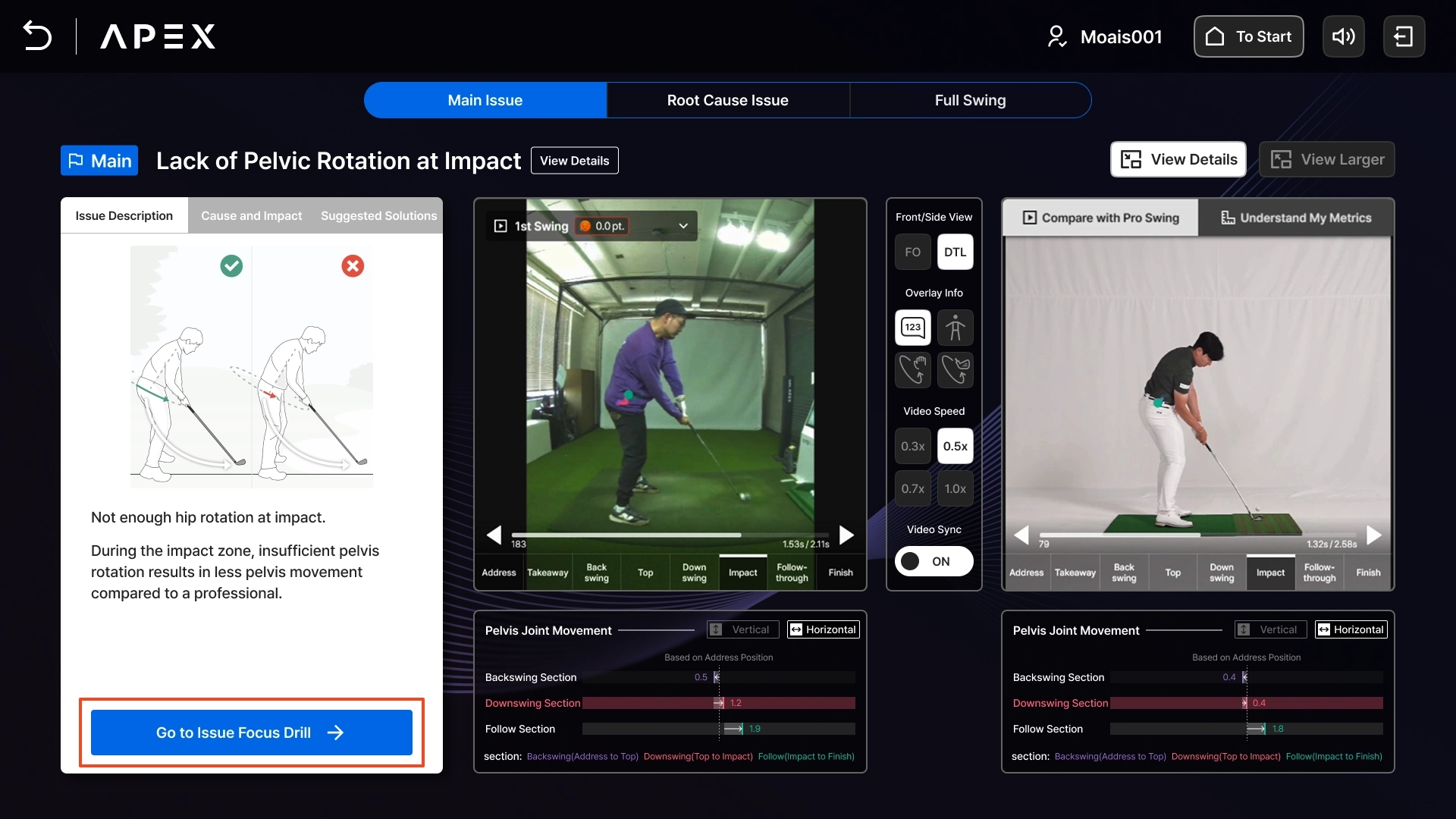
Start Focus Drill Mode
You can immediately start the Focus Drill Mode, where you can repeatedly practice the corresponding issue, via the [Start Issue Focus Drill] button at the bottom.
Focus Drill Detailed Guide
You can practice specific issues repeatedly and check improvement in real-time.
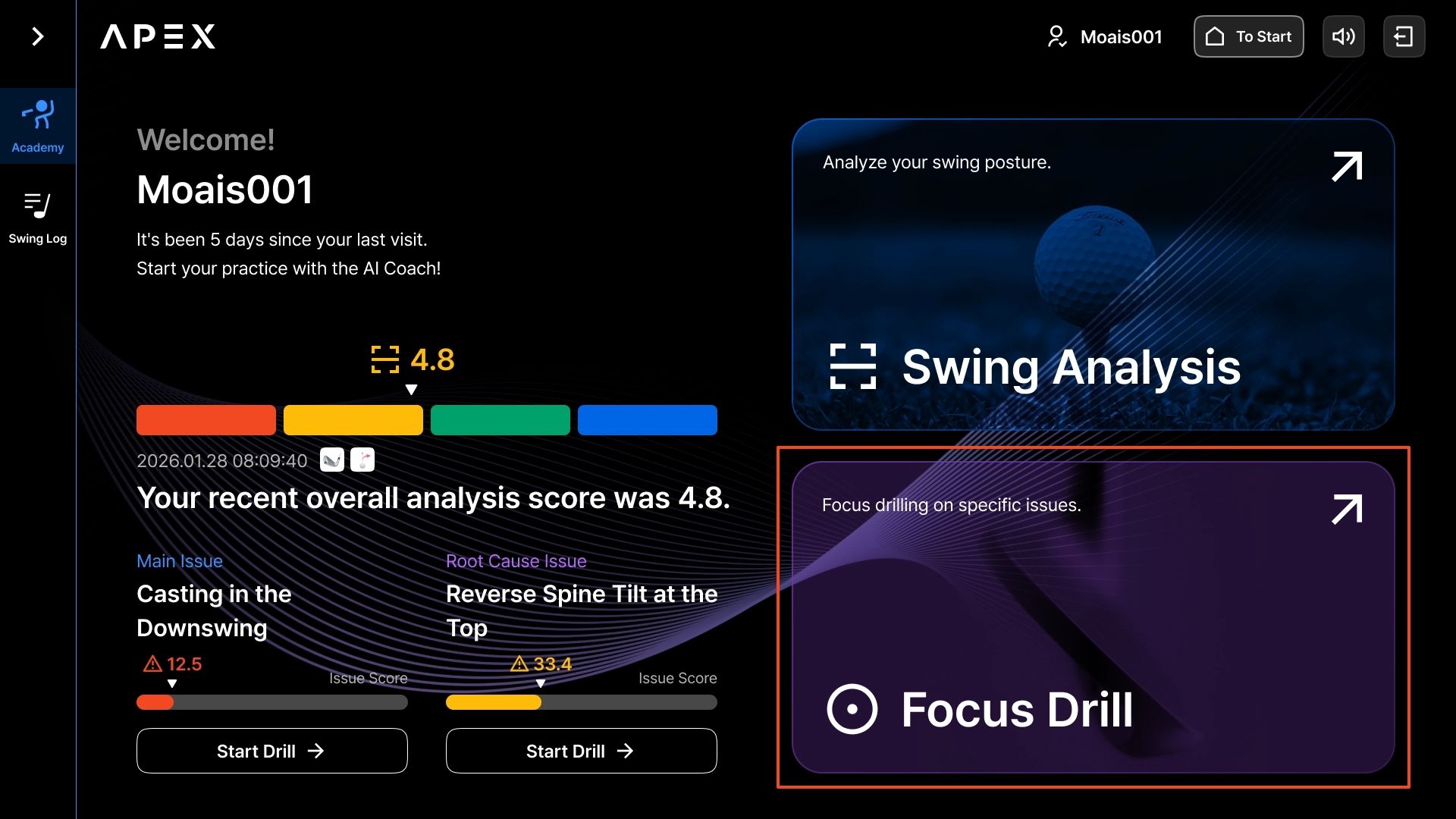
#1. Select Focus Drill Mode
Select Focus Drill on the Academy.
•
Afterwards, you can select a club just like in Analysis.
#2. Select Issue
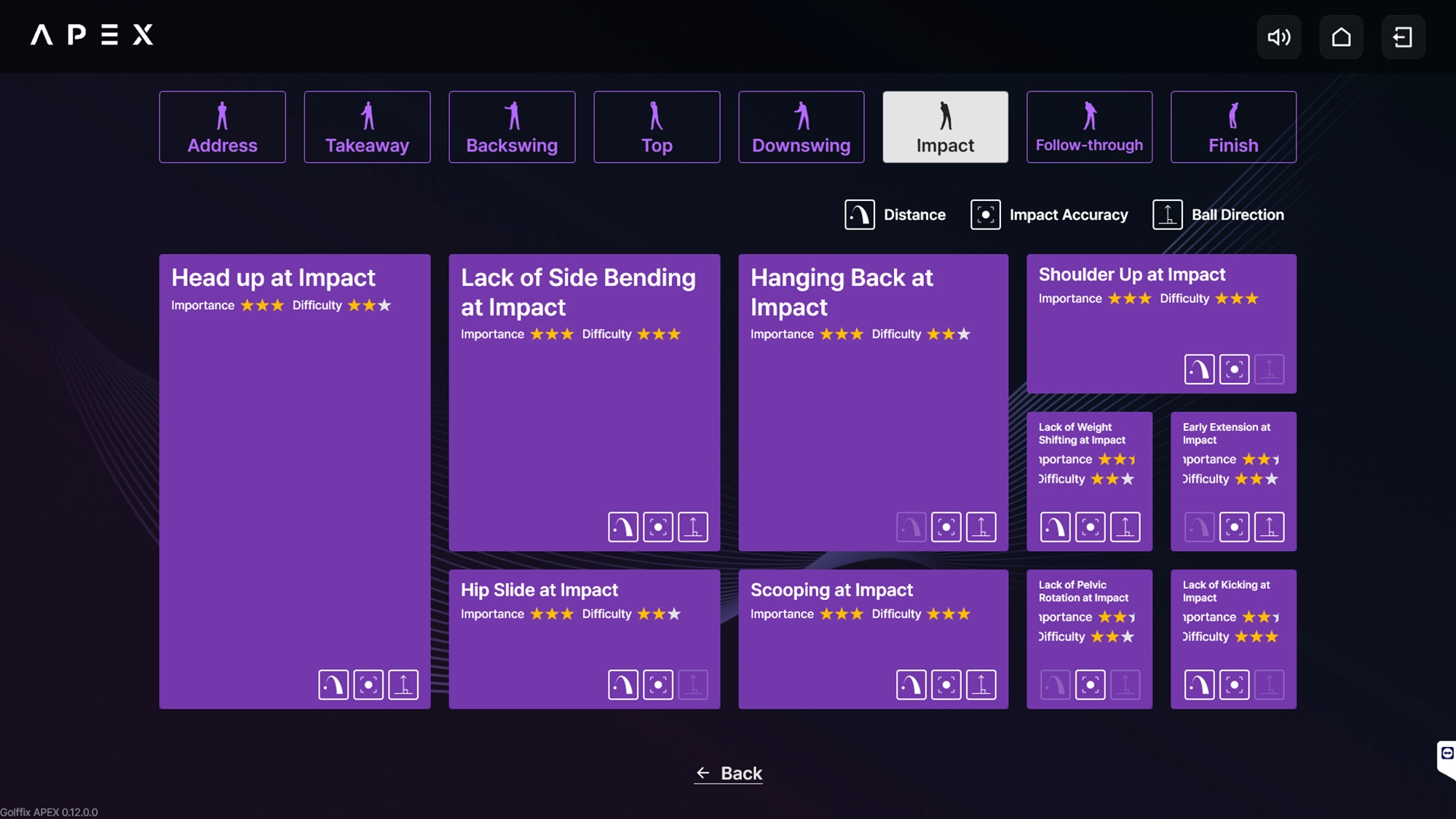
You can select the issue you want to practice.
•
•
Guides on Importance and Difficulty of each issue, and affected swing results (Distance, Impact Point, Ball Direction) together.
•
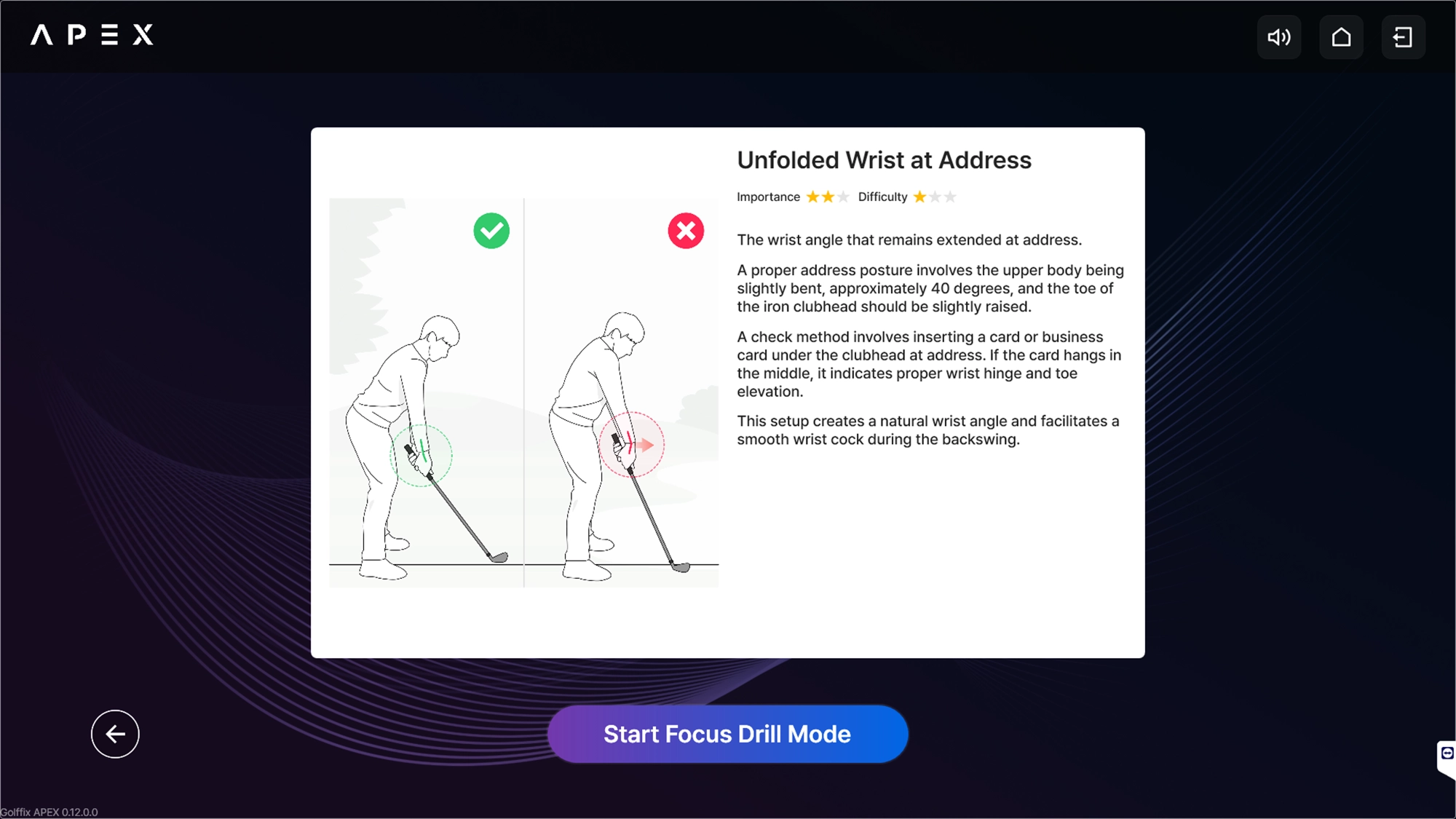
When an issue is selected, concept illustrations, descriptions, and solutions for the issue are provided in text.
•
Select the [Start Focus Drill Mode] button at the bottom of the Issue Content screen to start Focus Drill Mode.
#3. Start Focus Drill
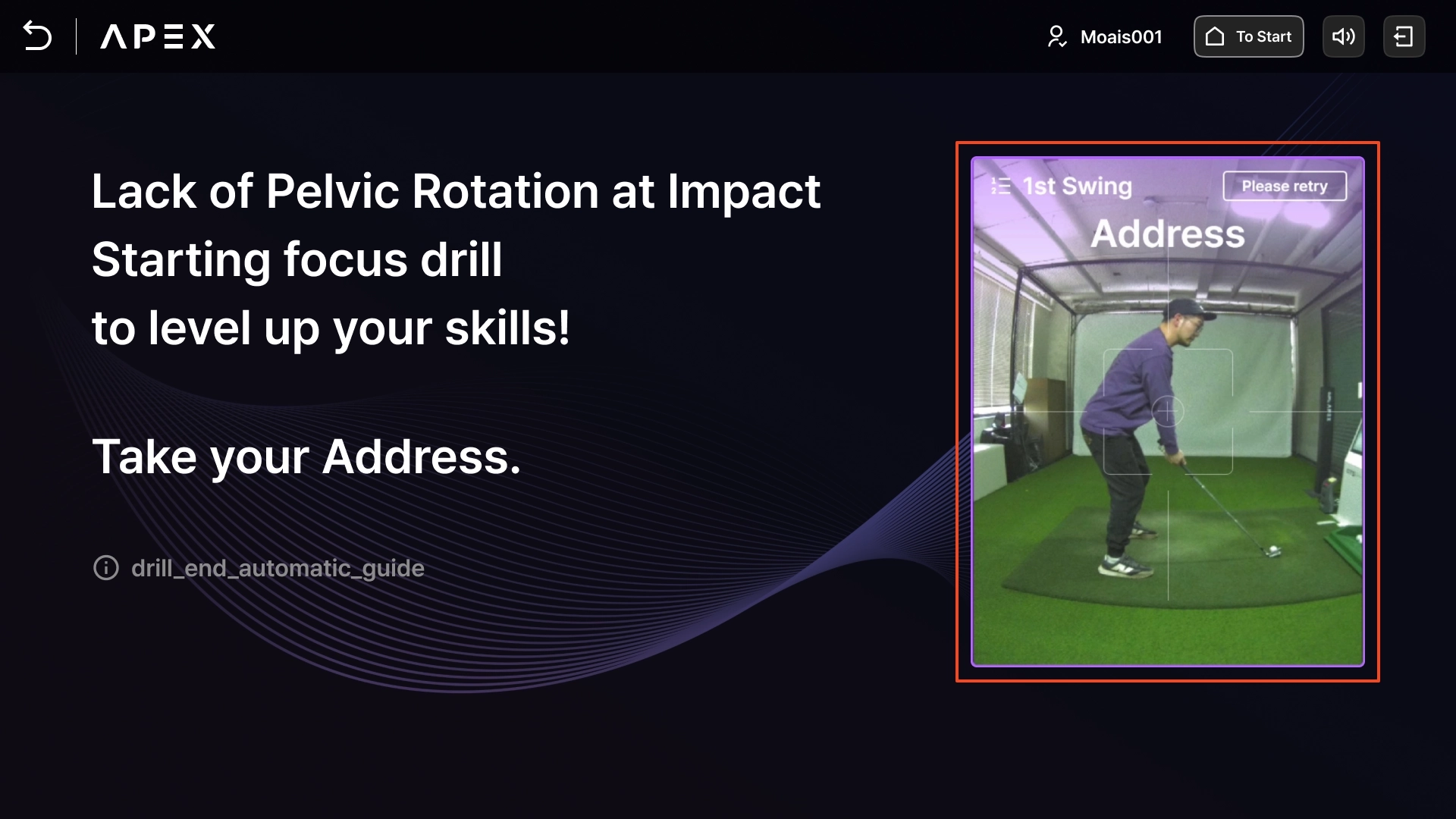
When Focus Drill Mode starts, recording begins.
Tip: Focus Drill continues indefinitely unless stopped. Press End if you want to stop.
#4. Focus Drill Interim Report
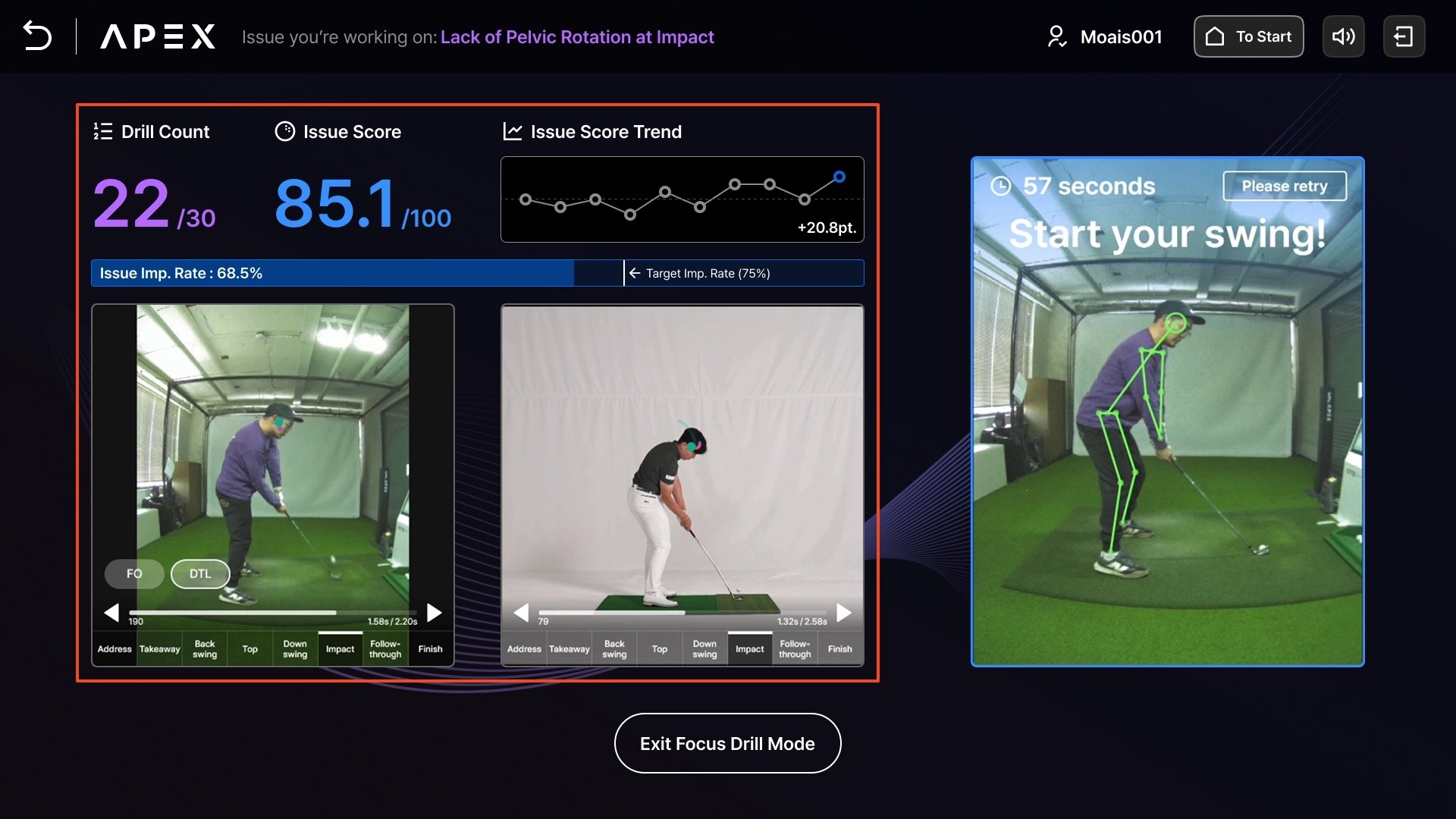
During Focus Drill, an interim report screen is displayed where you can check the results of every swing and the progress of the entire practice.
Practice Result
You can check the practice results in the screen below.
•
Information provided in the Interim Report
◦
Drill Count
◦
Issue Score
▪
Score of the issue being practiced (Different from the score in the Comprehensive Analysis function)
▪
Out of 100
◦
Issue Score Trend
▪
A graph showing the trend of issue scores, displaying up to the latest 10 swings
◦
Ball Data
▪
Distance and distance difference from the previous swing
▪
Shot Dispersion of the recent 3 times and difference in Shot Dispersion of the recent 3 times from the previous swing
▪
Angle of descent and difference in Angle of descent from the previous swing
◦
User and Pro Video
▪
Basically provided at 0.5x speed and synchronized, with the same video control method
▪
Provided only in Face on or DTL related to the issue, regardless of the mirroring screen
#5. Focus Drill Result Report
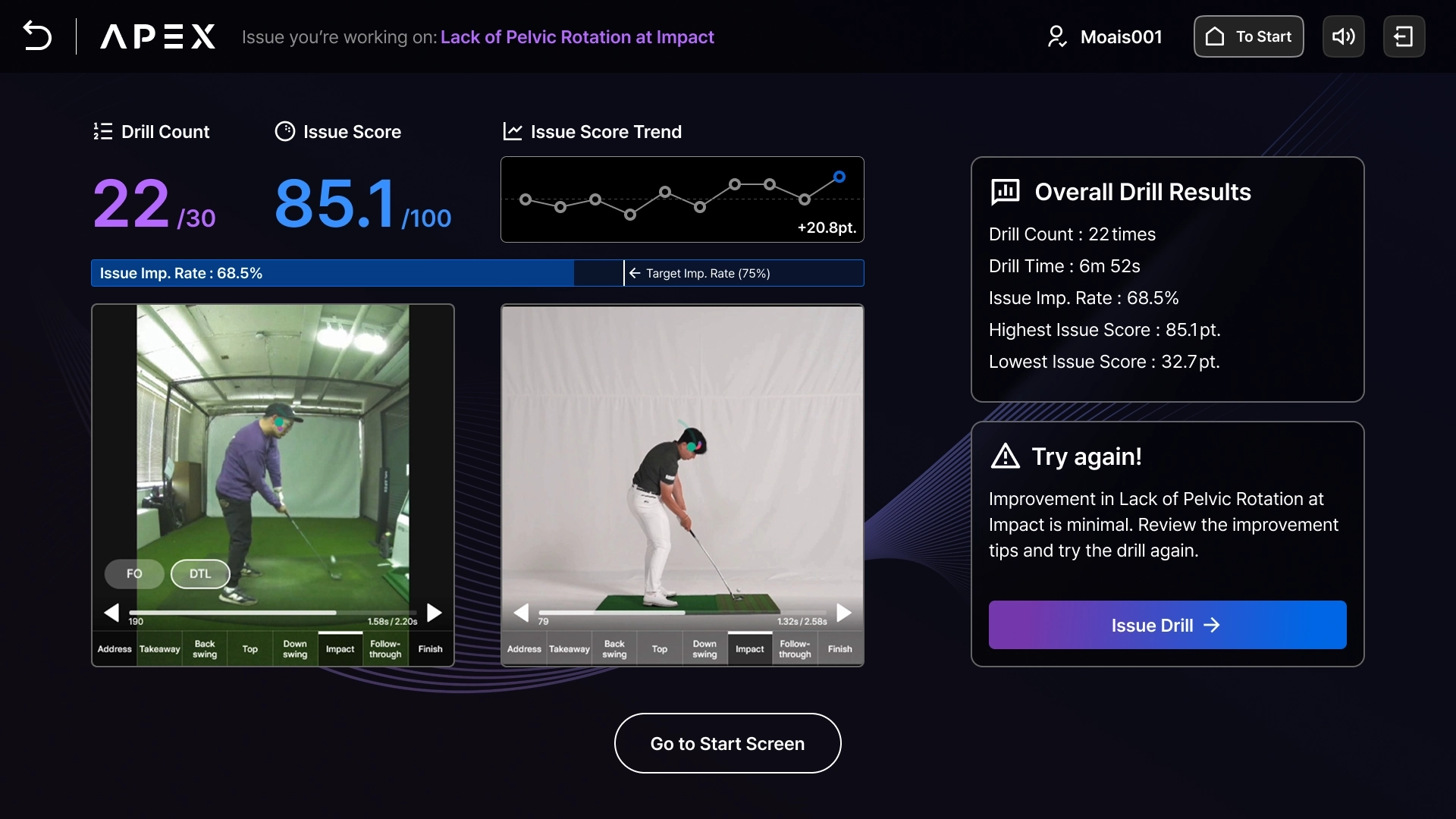
You can check the practice result report upon ending the Focus Drill.
•
Provides comprehensive practice results, including the total number of swings, duration, improvement rate, and the highest and lowest issue scores.
•
Suggests additional practice or working on other issues based on your improvement rate.
Swing Log
You can check data and videos from your completed analysis or practice sessions.
Swing Log Screen
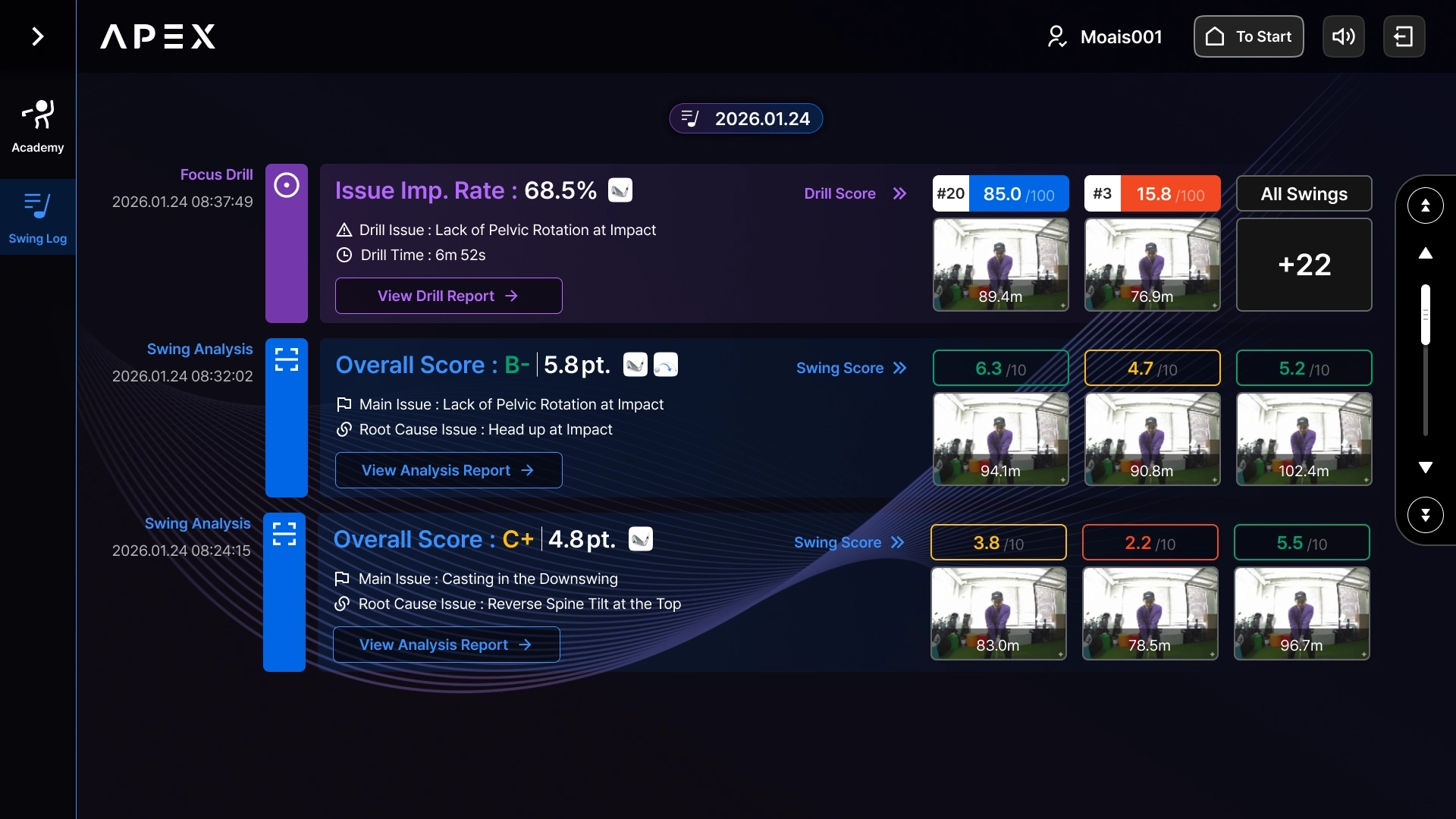
Completed Swing Analysis and Focus Drill sessions are logged here. If the list is long, you can scroll to explore.
•
Swing Analysis Logs: Access the Swing Analysis Report or review the reports for the 3 individual swing videos.
•
Focus Drill Logs: Access the Practice Result Report or review the swing video reports from your practice session.
Swing Video Report
Select a video from the Swing Log screen to view the Swing Report.
Contact Us
•
For detailed product information and installation inquiries, please contact us at the email address below.
E.O.D